
App Reviews

Products Reviews

Wondershare Filmora Review: All Details and Alternatives (2020)

It’s not a surprise why many people look for dedicated video editing software. As we already know, video marketing is booming and video contents impact our lives. However, no one is naturally good at creating a perfect video in one go. And, even if you can make it, it’s always better to add some effects, sounds, and filters to videos, isn’t it? This is where Wondershare Filmora comes in clutch.

Today in this article we will give a full and objective Wondershare Filmora Review to find out whether the video editing software is definitely worth your try.
What is Wondershare Filmora?

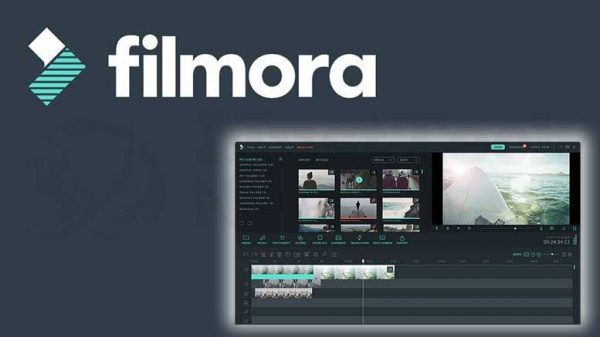
Wondershare Filmora is an elegant video editing software that is available for both Mac and Windows. This tool comes from Wondershare, an excellent developer behind so many popular apps like Dr.fone, Recoverit, and PDFelement. It should be noted that Wondershare Filmora is not only the best video editing software, but also a professional slideshow maker.

Product details:

Price Free and Paid
Developer Wondershare
Platform Desktop: Mac and Windows

Mobile: iOS and Android

Customer types Small business, Large enterprises, Medium business
Advantages
  • Easy to use
  • Can add effects, filters, texts, transitions and slow motion
  • Export videos with up to 4K resolution
  • Up to 100 Video Tracks
  • PC/Mac Cross-Compatibility
Disadvantages
  • There is a watermark on your videos using the free version.
  • No interface skin change in the new updates.
  • It’s too simple for advanced users.

Wondershare Filmora Review: Pro Features

Nowadays, the internet is full of different video editing software claiming to give you great performance. Before you choose the right one you may consider many things like price, functions, interface etc. Luckily, Wondershare Filmora has all the features you may like.

Now let’s have a closer look at Wondershare Filmora’s features.

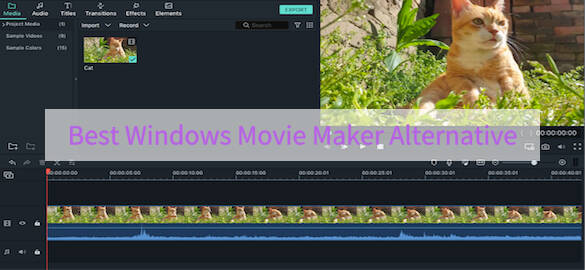
User-friendly Interface

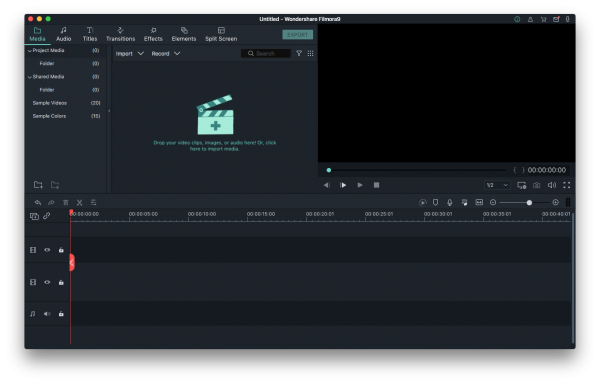
If it’s the first time you get started with this software, you must be fall in love with its simple interface. With all tools and functions such as text, transitions, filters and export available on the main interface, you can easily edit your video without any additional complicated settings, though it’s not so friendly for touch-screen.
Text and Titles

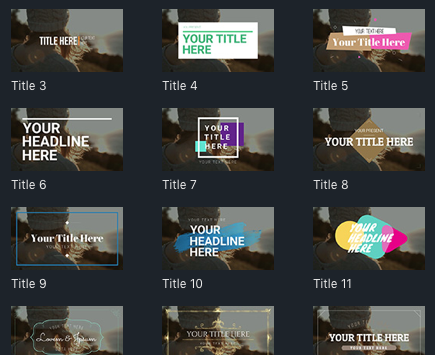
You can edit the color, font and size of text, type vertically when adding text and titles to your videos. Furthermore, it allows you to use titles, openers, subtitles, end credits. Each is editable right in the preview window.
Filters and Overlays

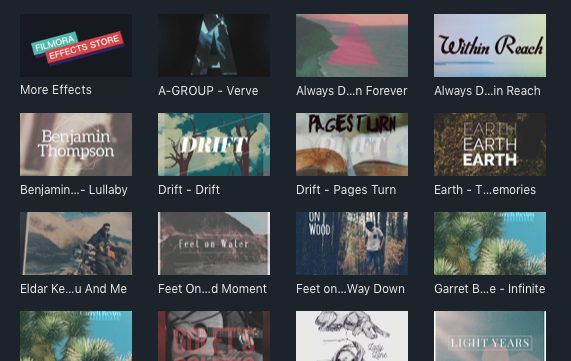
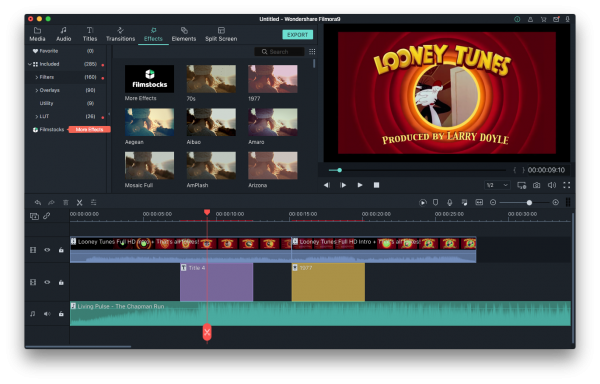
Filmora allows you to add as many as different filters or overlays as you like to make your video more interesting and attractive. Just click Effects on the top menu and then select the filters or overlays that you want to add to your project. Note that all filters and overlays are sorted by subject category, so you can easily find it.

Music and Audio

Wondershare Filmora offers a one-stop service for music and sound effects. It has a music library for free. They’re organized into categories like Young & Bright, Tender & Sentimental, Rock, Folk, Electronic. You can choose some good ones from the options and also can add music files from your own music library.
Split Screen

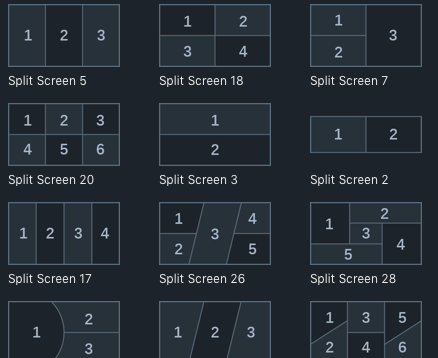
Split screen is becoming a popular technique in video creations. In the latest version of Filmora, it has the Split Screen Effect, making two or more videos displaying on one screen. This tool is useful when you want to show different angled video at once, compare two clips or images, or combine two or more videos into one.
Aspect Ratio

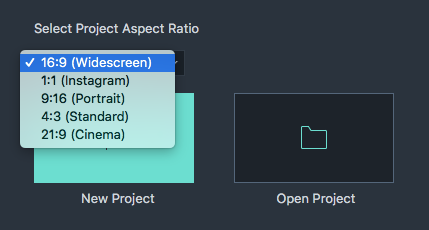
This is the new function added in the latest version. When you open Filmora, you are allowed to choose the Project Aspect ratio in the start interface, you can choose from 16:9 (widescreen), 4:3 (standard), 1:1 (Instagram), 9:16 (portrait). 1:1 and 9:16 are most popular on social media sharing nowadays.
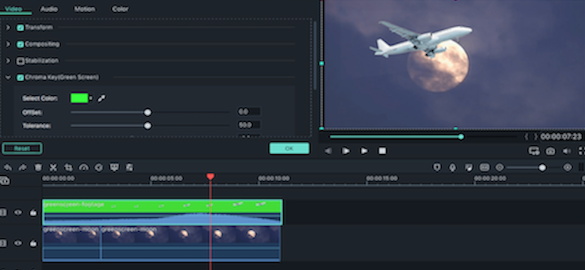
Green Screen Effect

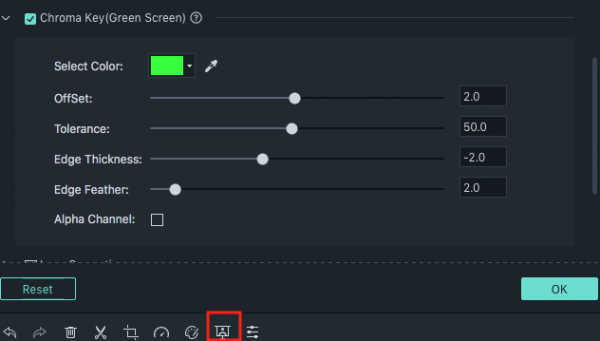
Make a green screen will make your creation looks like more professional. Fortunately, Filmora gives you the chance to make a green screen to your video. What’ more, the green screen effect can not only change color as green or blue but any color you like to create. 
Built-in Screen Record

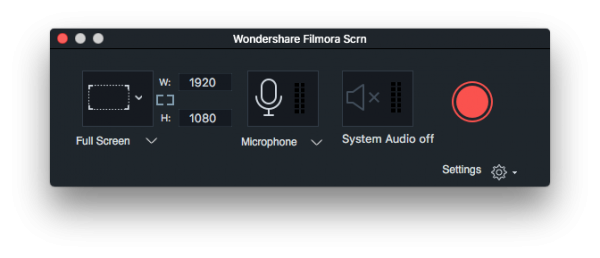
Wondershare Filmora provides just what users want to make their videos with a screen recording option, which is not common in some other similar video editing software. Otherwise, if you use Wondershare Filmora, it can save your cost on a screen recorder as you can use Filmora’s built-in screen record.
Export and Share

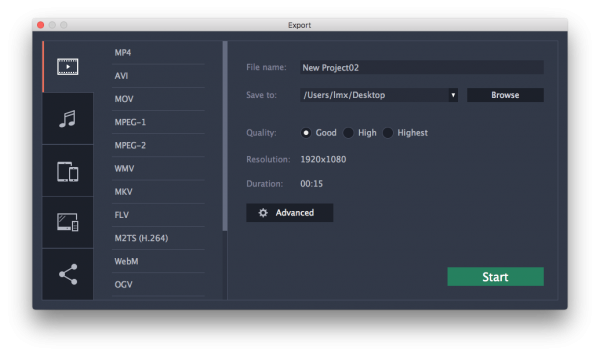
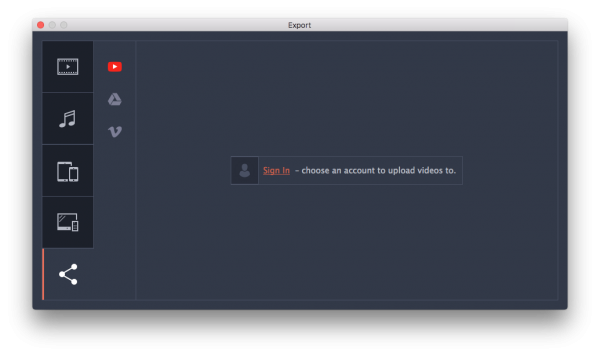
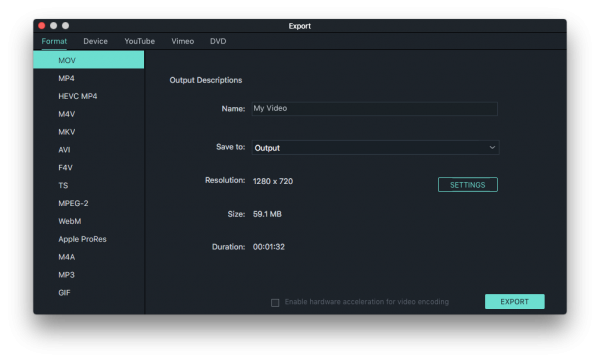
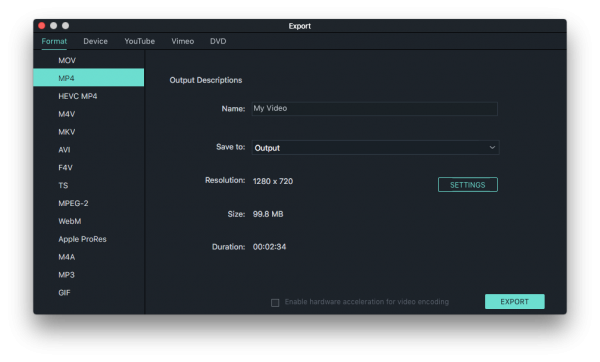
This tool has many output options including MP4, MKV, MP3, MOV, WMV and GIF etc. When exporting your video, you can select the quality settings: Best, Better and Good. Besides, you can share your video to social platform like YouTube, Vimeo, Facebook or burn to DVD.
A Full Guide on How Wondershare Filmora Works?

In the following step-by-step process, we will give you a full guide on how to edit a video with Wondershare Filmora. If you have downloaded the latest version of the software on Mac or Windows, just open it and follow the tutorial below. If you haven’t, you can get it by hitting the download button.

Free Download Win Filmora
 
Free Download Mac Filmora

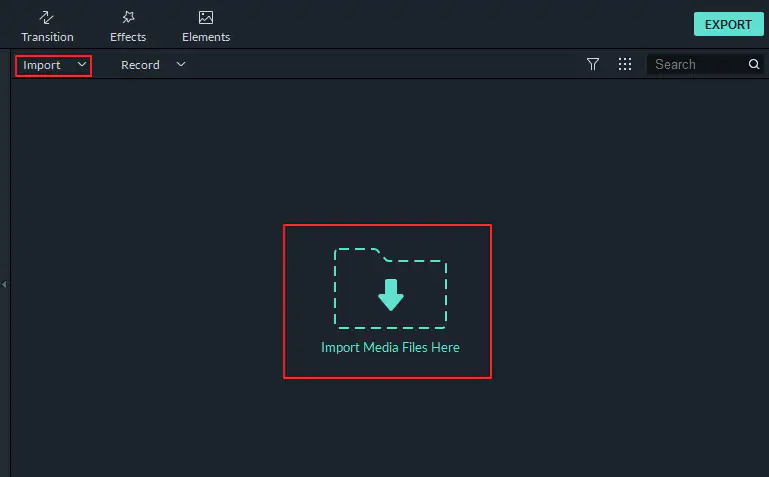
1. After you open it, select the Project Aspect Ratio as you like. Then click New Project.2. Upload video by clicking the Import icon or just drop video to the library.
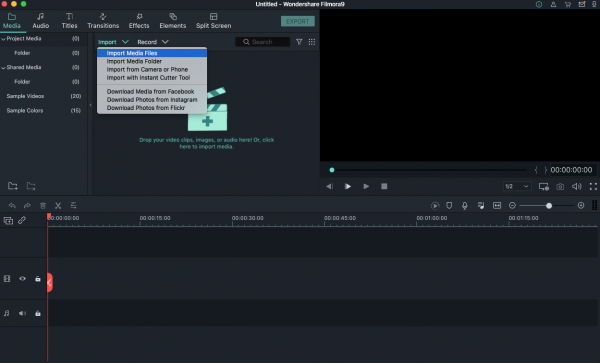
3. Then comes to Editing. You can do some basic editing and then apply filters or overlays to it, or add some background music, open titles, end-credits or subtitles to your video according to your requirements.
4. After making sure that there is nothing more to be edited, click on the Export button. And then choose the output format or share to YouTube and others.
Wondershare Filmora FAQs 

1. Is Wonderhsare Filmora a virus?

Absolutely not. Before downloading any software, the first thing you need to be sure of is if it is safe to download. You do not have to worry about this when it        comes to Wondershare Filmora. It is a safe to download, in my test.

2. How much does Wondershare Filmora cost?

It has different pricing plan for individuals, businesses, and education. The details are outlined below to help you choose which plan is best meet your needs.

 Filmora Pricing Plans

Plan Price Service
Free Trial  Free Watermark, No tech support
Individual Annual Plan $44.99/year All features, Updates, No watermark, Tech support
Individual Lifetime Plan $69.99/one-time fee Annual plan+Unlimited downloads from filmstocks, New effects every month
Annual Bundle Plan $104.87/year Annual plan+Unlimited downloads from filmstocks, New effects every month
Basic Business Plan $12.99/month/annual billing Annual plan+Permission for company use, Access to filmstocks free library,  No attribution required, Multi-User control,Volume discount
Standard Business Plan $24.99/month/annual billing Basic business plan+1-1 Sales support, Flexible payment options
Premium Business Plan $57.99/month/annual billing Basic business plan+1-1 Sales support, Flexible payment options
Student Plan $7.99/month All features, All updates, No Filmora watermark, Tech support
Educator Plan Ask for seller According to the pricing plan

3. Is Wondershare Filmora worth it?

Overall, Wondershare Filmora is a cost-effective video editing software with lots of wonderful features and it can work on both Mac and Windows. So, if you can accept the price and like its features, it is definitely worth a try.

4. Does Filmora have a watermark?

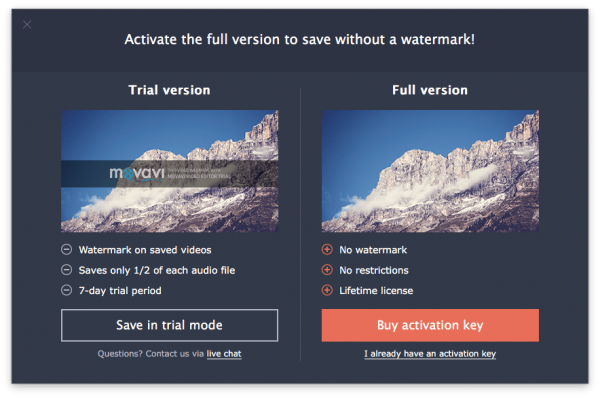
The watermark only exists in the free trial version. If you want to remove it, you have to pay for the other versions.

5. Is Wondershare Filmora legit?

Yes, it’s legit. Anyway, Wondershare is a legit company distributing its products worldwide through its members. It has existed for more than 10 years which is longer than many software companies today.

Wondershare Filmora Alternatives

If you still are not satisfied with Wondershare Filmora whether its interface or functions then here are 7 alternatives that will allow you to make a good video.

1. iMovie
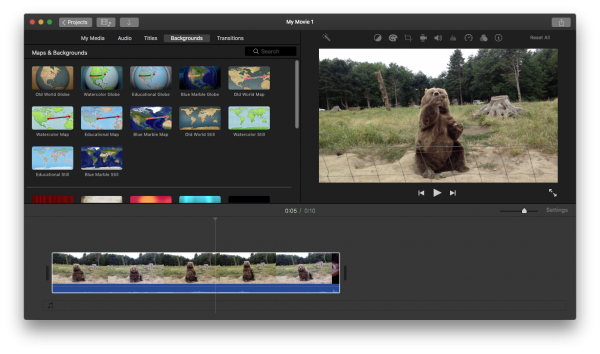
If you use Mac, iMovie, an Apple’s built-in video editing app, is your guy.  It allows users to input videos from various sources including DVD encoded files, digital video cameras, and even images. In addition, it also offers an option to add animated titles, color filters, special effects to your video like green screen. Its simplicity appeals most of novice. But for most advanced users, they just find it hard to meet their editing demands.

2. Movavi Video Editor Plus
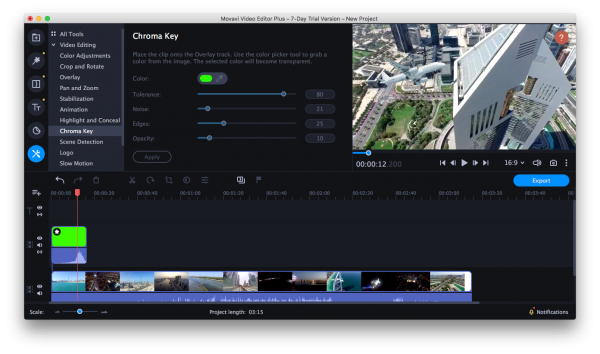
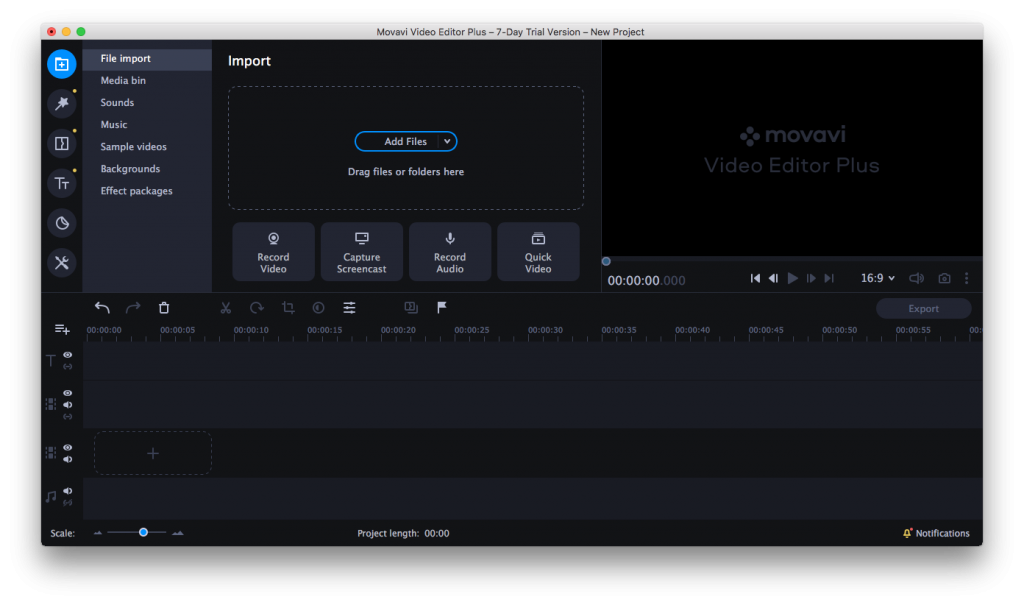
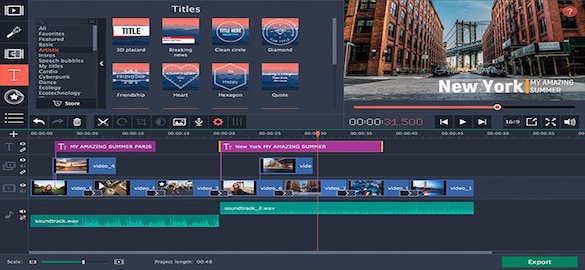
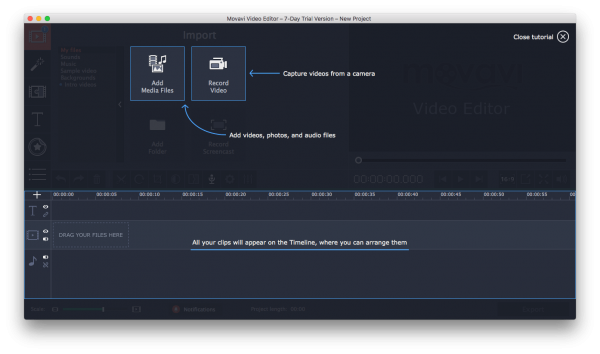
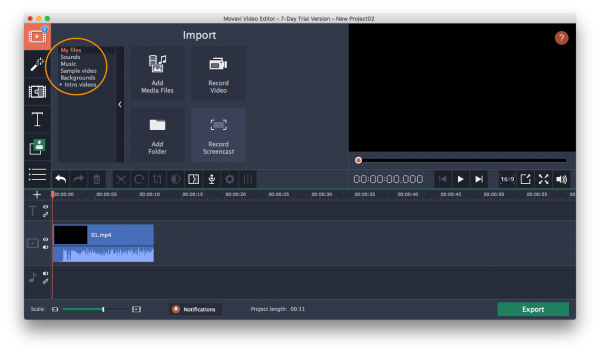
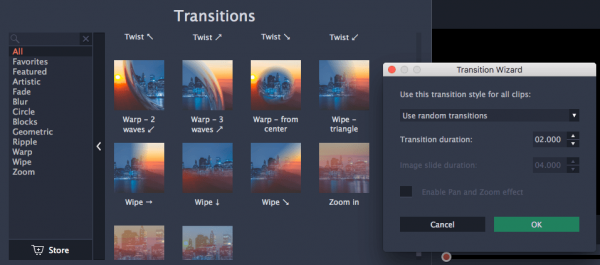
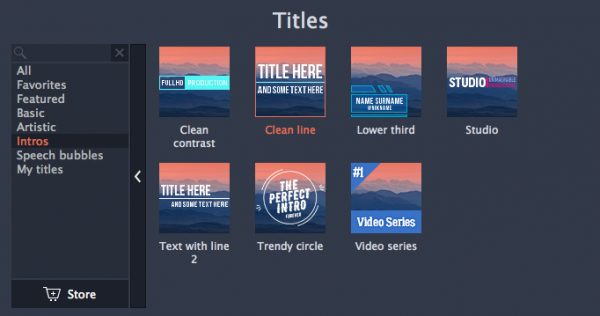
If you are a totally beginner, Movavi Video Editor Plus should be a good choice for you. With a really intuitive interface, you can easily get the function you need at a glance. Otherwise, ease-to-use does not mean non-professional, besides the basic editing skills (e.g. trim, merge, rotate, chroma key, slow motion, etc.), it also provides a variety of built-in visual effects (e.g. filters, titles and transitions) to rich your video.

3. Windows Movie Maker

Windows Movie Maker is a similar program to Filmora. It has excellent features, such as timeline narration, transition overlays, animations, and extensive audio options. Unfortunately, it’s no longer available to download now since Microsoft discontinued to update this software in 2017.

4. Davinci Resolve
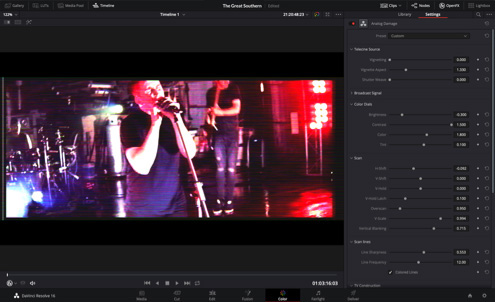
DaVinci Resolve 16 is the world’s only solution that combines professional 8K editing, color correction, visual effects and audio post production all in one software tool. It designed specifically for editors who works on high end fast turnaround work such as television commercials, news cutting. Furthermore, it has version for Mac, Windows and Linux.

5. HitFilm Express

Available for both Mac and Windows, HitFilm Express is a free video editing software combine editing and VFX (Visual Effects). It comes with over 140 inbuilt effects, transitions and presets. If you are a special effects amateur, then HitFilm Express is just the thing for you.

6. Lightworks
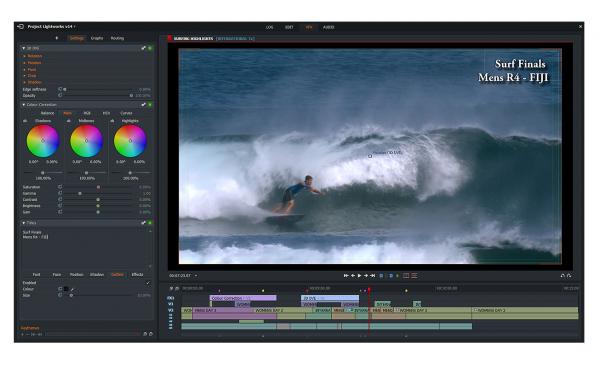
Lightworks has been in the field of film editing for over 25 years. Lightworks makes it all possible to make video for social media, YouTube or for a 4K film project. It is integrated with advanced tools like drag and drop, timeline editing, trimming, audio & video FX (special effect). With a quite intuitive interface, users have no issues importing images, audio or other clips to a video project and export also goes smoothly.

7. PowerDirector
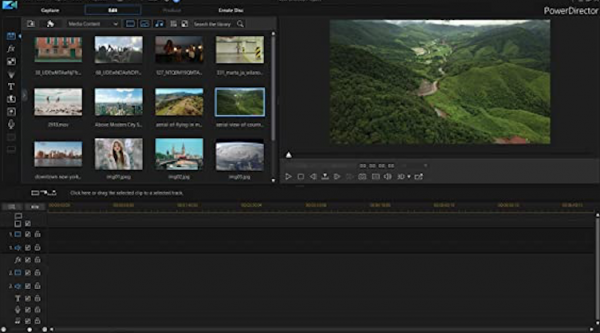
PowerDirector is the fastest and most full-featured consumer-level video editing software. However, the quality is not so good as other competitors and it doesn’t offer many of the advanced video editing features its competitors do. If you prefer to save time while creating a project, you’re exactly the kind of person that PowerDirector was designed for. But if you go for high-quality videos, you’d better consider other competitors such as Wondershare Filmora.

Final Verdict

I hope this Wondershare Filmora review will help you make the right decision. So far, I am impressed with Filmora’s powerful features and intuitive interface. More importantly, Filmora has updated constantly to keep with users demands.


Related Post
By |2020-10-15T17:15:10+08:00June 18th, 2020|Tags: , |

8 Best Slow Motion Software for Windows, Mac and Mobile

This article provides a list of the best slow motion video software. Slow motion, often called slo-mo or slow-mo, is an effect used in in filmmaking and video production. You may often find the slow motion technique in actions movies and sports replays. The effect can be achieved in different ways. One common ways is to use software. In the list here, you can find the top 8 video editors to make a slow motion effect, free and paid.

Top 8 best slow motion software

#1 Wondershare Filmora

OS: Windows 7 or later; macOS 10.11 or later

It’s easy to efficiently make a slow-mo effect on PC or Mac. You can use slow motion software like Filmora. With Filmora, you can easily slow motion a video by adjusting speed or changing video duration. It’s very easy to use even for beginners.

For example, you can slow down or speed up to:

  • 0.5 (slow down by half)
  • 1 (the original speed)
  • 2 (double speed)
  • Custom value (e.g. 0.1, 0.15, 0.2, 0.25, 0.3, 0.35, 0.4, 3, 4, 5, etc.)

In addition, Filmora also provides a variety of basic and advanced features such as Crop, Reverse, Noise Removal and Green Screen.

Free Download Windows Filmora
 
Free Download Mac Filmora

3 easy steps to use the slow motion software

Step 1. Download and install the app on your PC or Mac. Launch it. Click Import to add one or more videos into the app based on your need. Alternatively, you can drag and drop files.

click to import

The app is highly compatible and supports all common video formats.

Step 2. Drag your video clip down to the timeline and right-click or control-click it. Now select Speed and Duration, which will bring up a window. Slide the speed bar, and the value that appears accordingly shows how slow or fast the clip will be. The further you slide to the left, the slower your video will be. Click OK.

custom speed panel of slow motion software

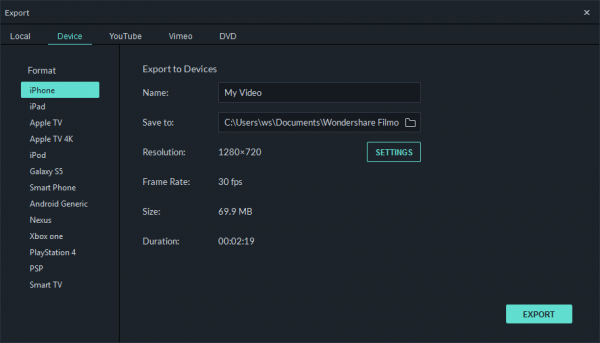
Step 3. To export the slowed down video, click Export. To choose an export format, click Format. Click Export.

export slowed down video

Of course, you can also continue editing your video using the other features of the same app.

Tip

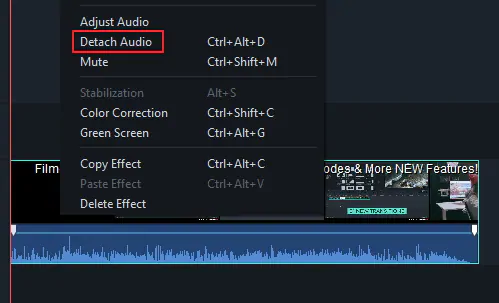
When you slow down or speed up a video, the video’s audio track will also change accordingly. To leave the audio track alone, you can first use Filmora to separate audio from video. To do this, double click the file and click Detach Audio.

detach audio

In addition to being used as slow motion software, Filmora also offers the following main features and benefits.

  • Support up to 100 media players
  • Offer over 300 built-in effects
  • Offer both basic & advanced video editing features
  • Features like Split, Screen Record, Speed Control, Keyframe Edit, etc.
  • Support 4K video editing
  • Support all popular video, audio and image formats
  • Provide a rich selection of effects and templates at its Effects Store
  • Export videos optimized for uploading to YouTube and other platforms

Free Download Windows Filmora
 
Free Download Mac Filmora

To see what is possible in Filmora, you can check out its official website.


#2 iMovie

OS: macOS 10.14.6 or later; iOS 13.0 or later

Built-in to macOS and iOS, it can be a free slow motion software app for Mac. If you want to edit video speed without downloading third-party software, you can iMovie to do the editing. Here we will take Mac as an example.

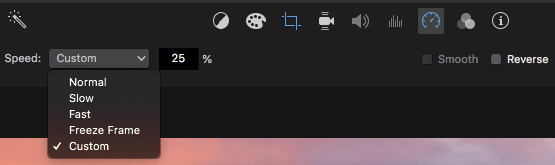
Step 1. In iMovie on your Mac, from the toolbar above the View, click the speed icon.

Step 2. Click the Speed dropdown list that appears. Select Slow.

create slow motion in iMovie on Mac

Step 3. You will be presented with a few options: 10%, 25%, 50% and Auto. You can click Auto and enter a desired value if needed.

Alternatively, you can access the slow motion feature by going to Modifying in the top menu bar.


#3 slowmoVideo

OS: Windows; Linux

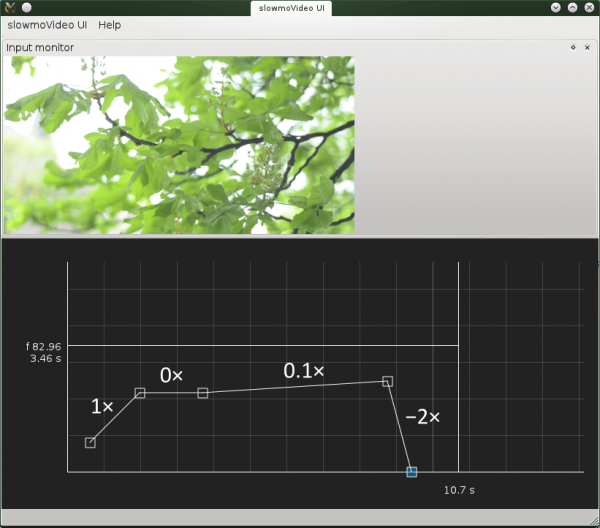
If you are looking for open-source slow motion software, this one can be a choice. As a software name suggests, it’s designed to slow down video clips. As a matter of fact, it can also speed up your footage. It supports any video format that supported by FFmpeg. In addition to edit speed, users can also easily add motion blur effect. There are also some useful minor features like Markers. The software allows you to add markers to your video clip, which can be helpful when you deal with long videos.

slow motion software for Windows slowmovideo


#4 ReSpeedr

OS: Windows 7 or later

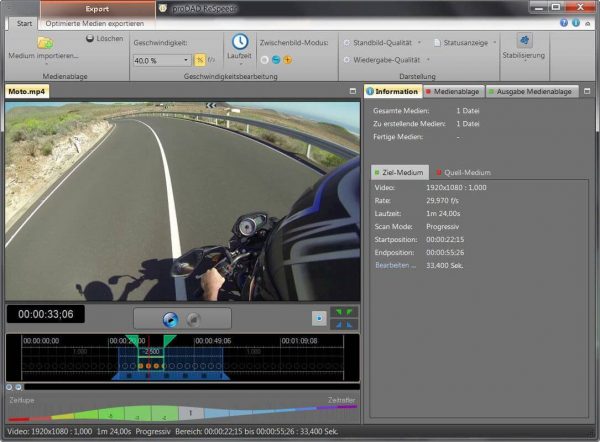
This slow motion software excels at creating high quality slow motion videos. It is compatible with Windows 7, Windows 8, Windows 8.1 and windows 10. With the software, it’s all up to you to determine the speed of the scenes. Useful features like real-time preview help improve efficiency. Despite being professional and sophisticated in its field, the software is user-friendly and doesn’t require a sharp learning curve. With the auto mode and the other modes it provides, users can effortlessly change the speed on the timeline.

slo mo software respeedr


#5 Twixtor

OS: Windows; macOS

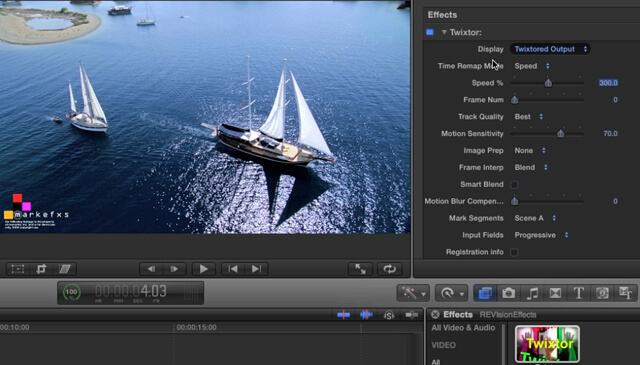
Instead of being slow motion software, it’s actually a software plugin, which is used to create slow motion in videos. It can be used with software like After Effects, Fusion Studio, Nuke, HitFilm, Media Composer, Natron, Final Cut Pro and Vegas Pro. It allows users to do edit speed on a frame-by-frame basis. Also, it provides options to apply or remove motion blur effect. There are more advanced features like Track Point Guidance and Enhance Dark Imagery. As a result, it can meet various slow motion editing needs.

Twixtor


#6 Slow Motion Video FX

OS: Android 4.3 and up

For those who are looking for slow motion software for Android, this app is worth trying. Available on Google Play, it is free to use. But the free version contains ads. It also offers in-app purchases. With it, you can create slow-mo video from any of your clips on your phone with super ease. Also, it can be used to speed up your video. There are two types of editing choice. With the simple process, you can slow motion the whole video. With the advanced one, you can specify the time points and change the speed of any part of your video. It’s convenient.

slow motion software for android


#7 Slowmotion Video Editor

OS: Android 4.2 and up

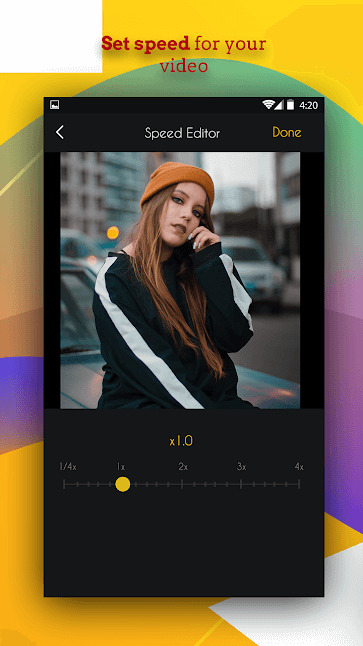
Unlike the one above, Slowmotion Video Editor for Android is free without paid version. Despite being free, it’s good at adding slow motion to videos. In addition, it offers other features like editing, slideshow making and trimming. You can easily create slow motion clip, slow down a song, convert HD video slo-mo. The app can work perfectly offline, which is great.

Slowmotion Video Editor

#8 Slow Motion Video Maker

OS: Android 4.2 and up

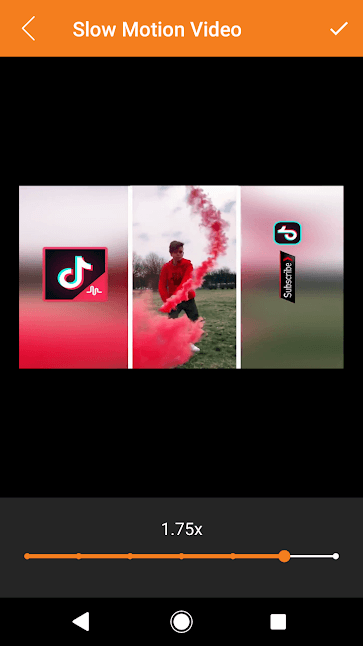
To effortlessly slow down video speed on your Android phone, you can also this app. It’s free to use and versatile. In addition to controlling video speed, it can also reverse video and do some basic video editing like trimming. As it supports the most common formats like MP4, MKV and AVI, users can easily import most videos to edit without problem.

Slow Motion Video Maker for Android


Conclusion

Above are the some of the best slow motion video software available. Some of them are free and some are not. Software like Filmora is recommended if you want to easily create various video effects including slow motion. It enables users to easily create funny effects, make educational videos, edit vlogs and do other cool things.

Related Post

By |2020-03-05T09:10:15+08:00March 5th, 2020|

Dr.fone Review 2020: Is Dr.fone Safe and Does it Work?

Nowadays, mobile phone is not only a tool for communications. More and more users are using phones to store and process data for study or business. Thus, the needs to manage, transfer, even recover data on phones grow, and this is how Dr.fone comes out. So today, we are going to give a complete and unbiased Dr.fone Review, helping users to find if it is worth a try.

5 Basic Thins You Need to Know about Dr.fone

Before going to the review, there are 5 facts that you should know about Dr.fone. By knowing this, you can keep read the review and take practical tests on this program before a commercial decision.

What is Dr.fone?

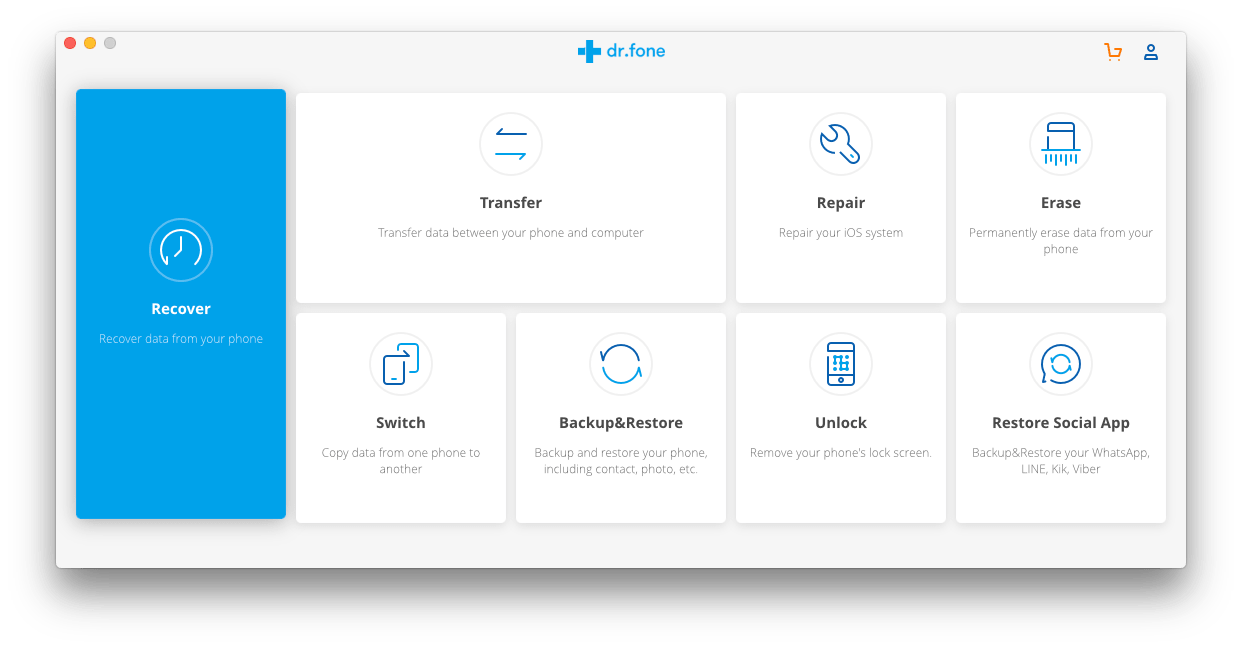
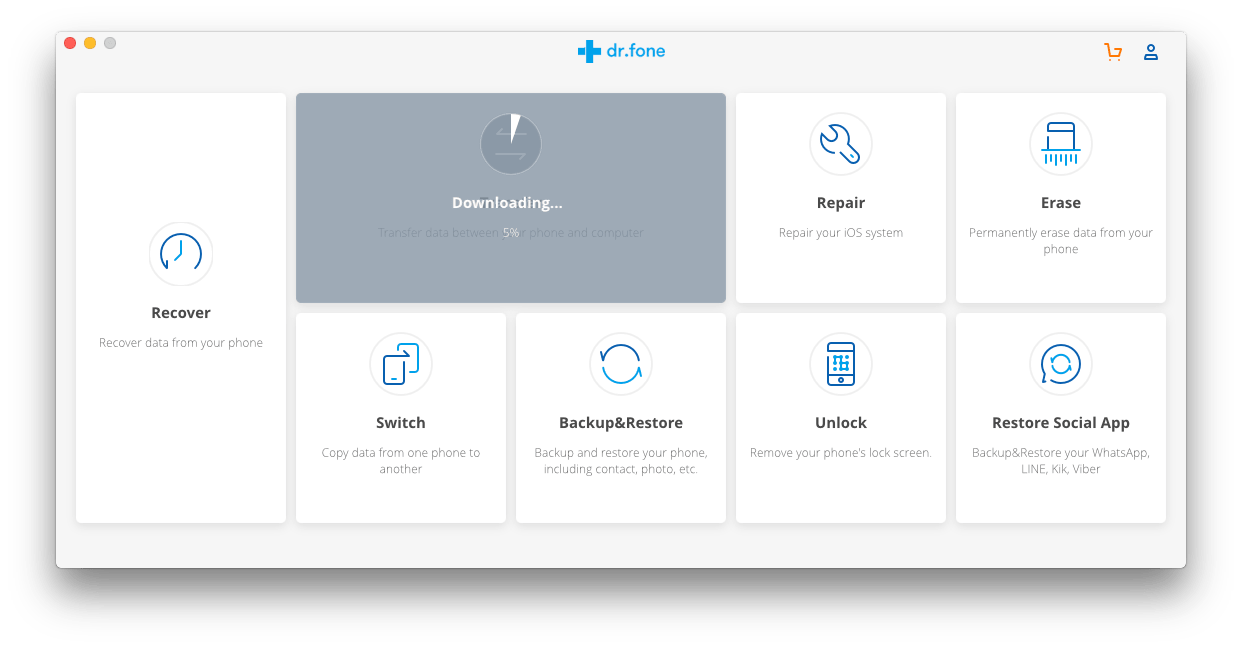
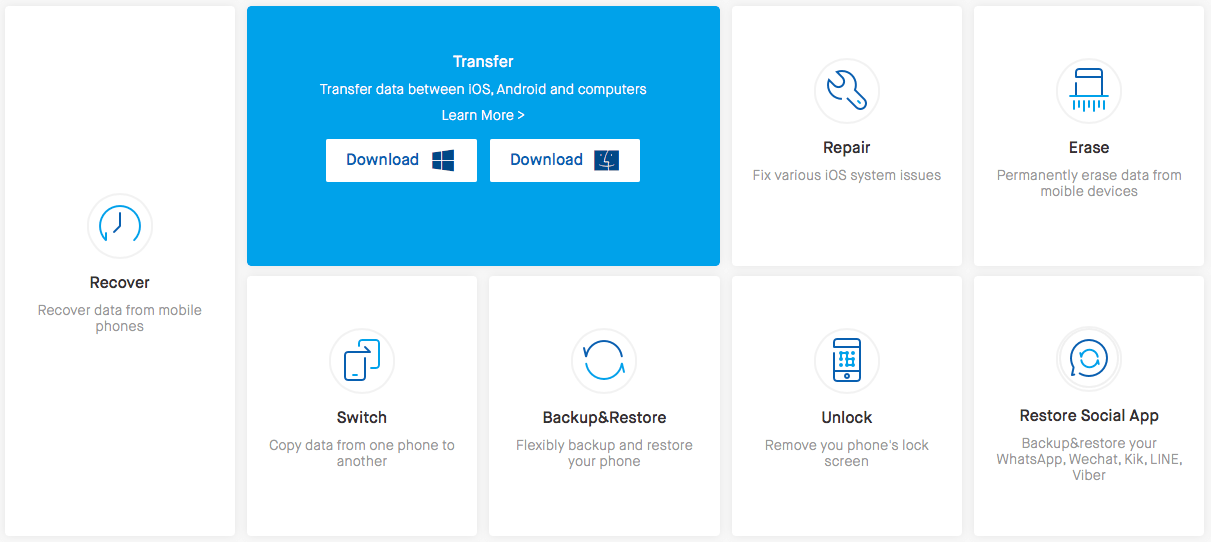
Dr.fone is a toolkit, there are total 8 programs packed in the same kit to manage your phones. That’s to say, when doing a specific task, you need to launch or download the program accordingly, then process under the program. Dr.fone, as it claims, it provides all the tools you need to run your mobile at 100%. It is true, it gives all necessary features to manage your mobile phone:

  • Recover phone data via different recovery modes;
  • Transfer data between mobile phones, computers;
  • Repair system issues;
  • Erase data from mobile devices;
  • Copy data from one phone to another;
  • Backup and restore mobile phone;
  • Remove phone’s lock;
  • Restore social app;

Is Dr.fone a Virus?

Absolutely No!

Wondershare, the developer of Dr.fone, is a leading company to provide professional software and tech solutions for more than 15 years. It focuses on high quality services and won’t bring safety risks, such as virus to its users.

Also, all of Wondershare’s products, including Dr.fone is clean and safe to use, there is no bundled software or malware. Therefore, for 100%, Dr.fone is not a virus.

Is Dr.fone Free?

No, Dr.fone provides free trial, but it is not free.

The free trial of Dr.fone comes with 8 programs, but only 4 of them are ready for free trial, including Recover, Repair, Erase and Unlock. To utilize other programs in the toolkit, you need to download first, all the programs just work under individual interfaces.

As for the free trial of each program, there are limitations. For example, you can scan data on your phone, but if you want to recover, you will need to pay; you can backup data on your iphone, but if you want to export the data, you will need to pay…

That’s to say, the free trial is quite feature-limited, if you want professional services or extended features, you will need to buy the paid edition. While, in most cases, the free trial fall far short of our expectations. Dr.fone offers different version on all platforms, priced from $7.99~$139.95.

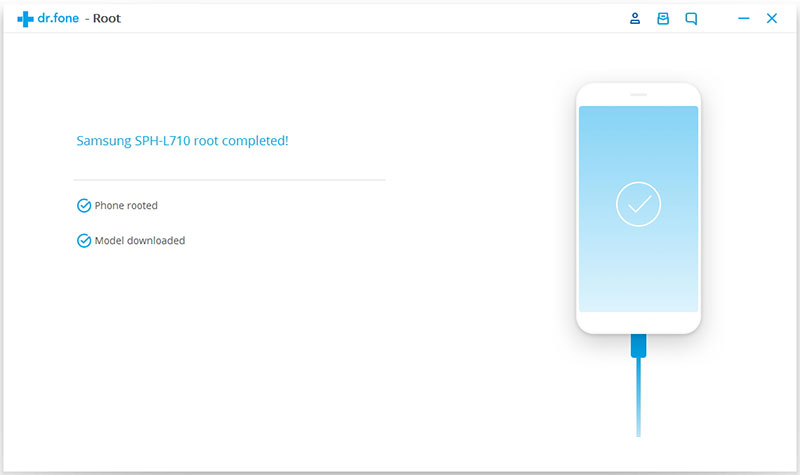
Is Dr.fone Root Safe?

Yes, it is safe to root your Android phone by using Dr.fone.

In my test, I rooted my Huawei phone using this program and everything goes well until now.

Of course, it doesn’t guarantee that all the Root on different mobile phones can be successful. For a safe Root, you need to backup the data first, if anything happens, there is a way back out.

Does Dr.fone Really Work?

Well, this really depends.

When talking about the features to manage phone data, such as data transfer, switch, backup, erase, most of the users deem this program does a good job.

However, when speaking of its data recovery or system repair, there comes a major complaint about its failure to do so.

For more details to check if Dr.fone can work for you, keep reading the following review.

The Dr.fone Review

Quick Review

Pros

  • Easy to use

  • Clean and neat interface

  • Multifunctional (8 great features)

  • Both PC and Mobile Phone version available

Cons

  • Need to pay for each feature

  • Relatively poor performance on data recovery and system repair

  • Too many options for downloading

Short Summary:

Dr.fone does a good job when managing you phone data, such as data transfer, backup or erase, but performs quite ordinarily when speaking of data recovery, no matter recovering from device directly, or from backup, or from social apps.

Download and Installation

You can download the packages on Wondershare official website. But for users who are new to data recovery on mobile phone, it is a little complicate to choose the right version for download.

In term of platforms, Dr.fone provides 4 versions. On its official website, there are Windows version and Mac version, which is designed to recover and manage the data in your mobile phone on Windows or Mac, that is to say, to process data on your iPhone or Android phone, you will need a computer to install and run Dr.fone. Also, Dr.fone offers the iOS and Android version in App Store and Google Play, to process data on your mobile phone directly, totally without a computer.

dr fone pc version

For users who are willing to recover or transfer phone data on PC or Mac, download the Windows or MacOS version accordingly; for users who want to recover or transfer phone data directly on the phone, go to AppStore or Google Play.

dr fone mobile version

In term of features, Dr.fone allows users to download the full Dr.fone toolkit, or just a single tool. The full Dr.fone version packs all 8 tools in the kit, tools such as Recover, Repair, Erase, Root and Unlock are ready to use, but tools such as Transfer, Switch, Backup&Restore and Restore Social App need to be downloaded within the program if necessary.

dr fone full version

Also, users can choose to download the single tool, such as Dr.fone-Recover, Dr.fone-Repair etc.

dr fone single

The installation is quite easy, just follow the wizard to install the toolkit or single tool.

Interface

Dr.fone offers a clean and neat interface. There lists detailed steps instructing users to use its services.

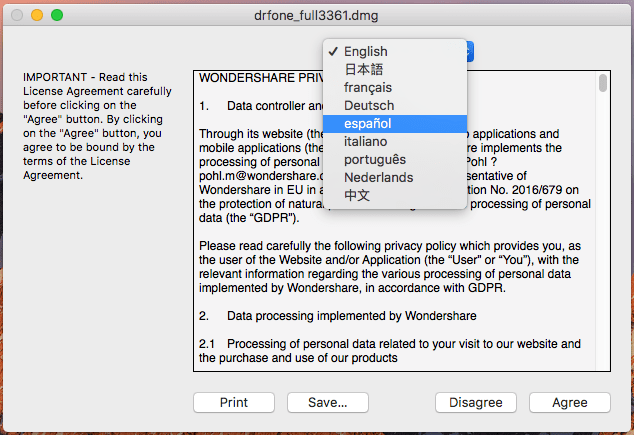
Also, it offers multi-language interface, users can choose any one from its 9 supported languages.

dr phone multi language

Performance

#1 Recover

Rating: 3/5

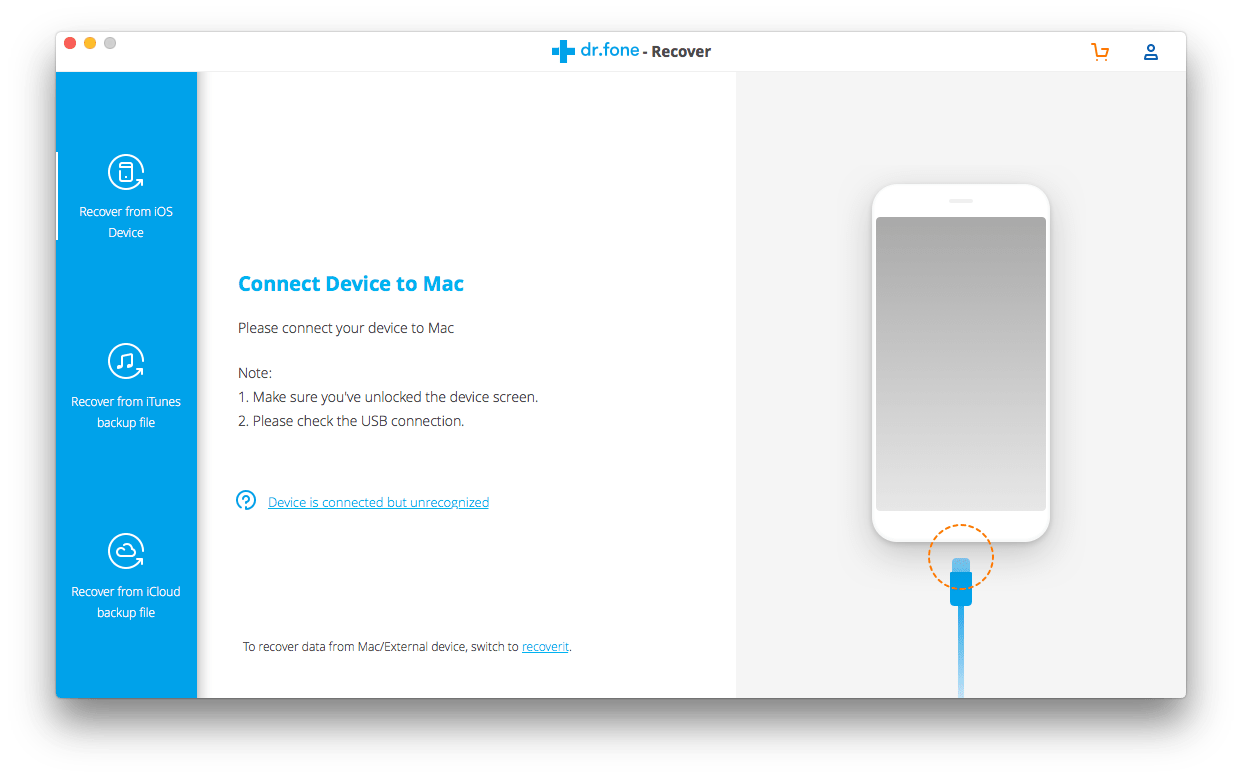
Dr.fone-Recover helps to recover photos, videos, contacts, messages, notes, call logs and others from iPhone or Android phone.

It provides 3 recovery modes:

  1. Recover from iOS device/recover from Android phone
  2. Recover from iTunes backup file/recover from Android sd card
  3. Recover from iCloud backup file/recover from broken Android

dr fone recover

According to my test, Dr.fone does find a lot of files, some of them are hidden deep there that I didn’t even notice. The scanning and recovering process fast, however, 40% of the recovered files cannot be opened, especially the photos and contacts.

#2 Transfer

Rating: 4/5

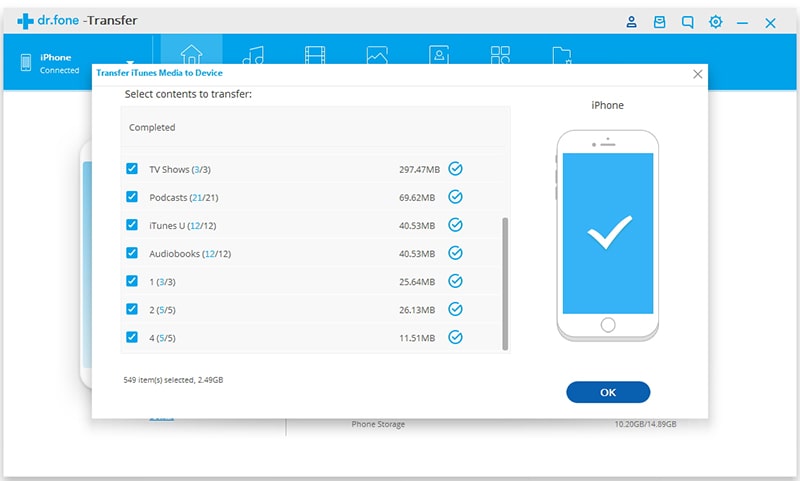
Dr.fone-Transfer helps to transfer music, videos, photos, apps and other files between PC and mobile phones. The Windows and Mac version vary a little, but both support to manage phone data, such as add, delete, edit, or merge media files/contacts on computers.

In my test, Dr.fone can fast recognize the device and access to the data for management. It supports to transfer various file types, just functions as similarly as iTunes. However, it cannot remember which files have been downloaded and imported, which cause repeated download.

dr fone transfer

#3 Repair

Rating: 3/5

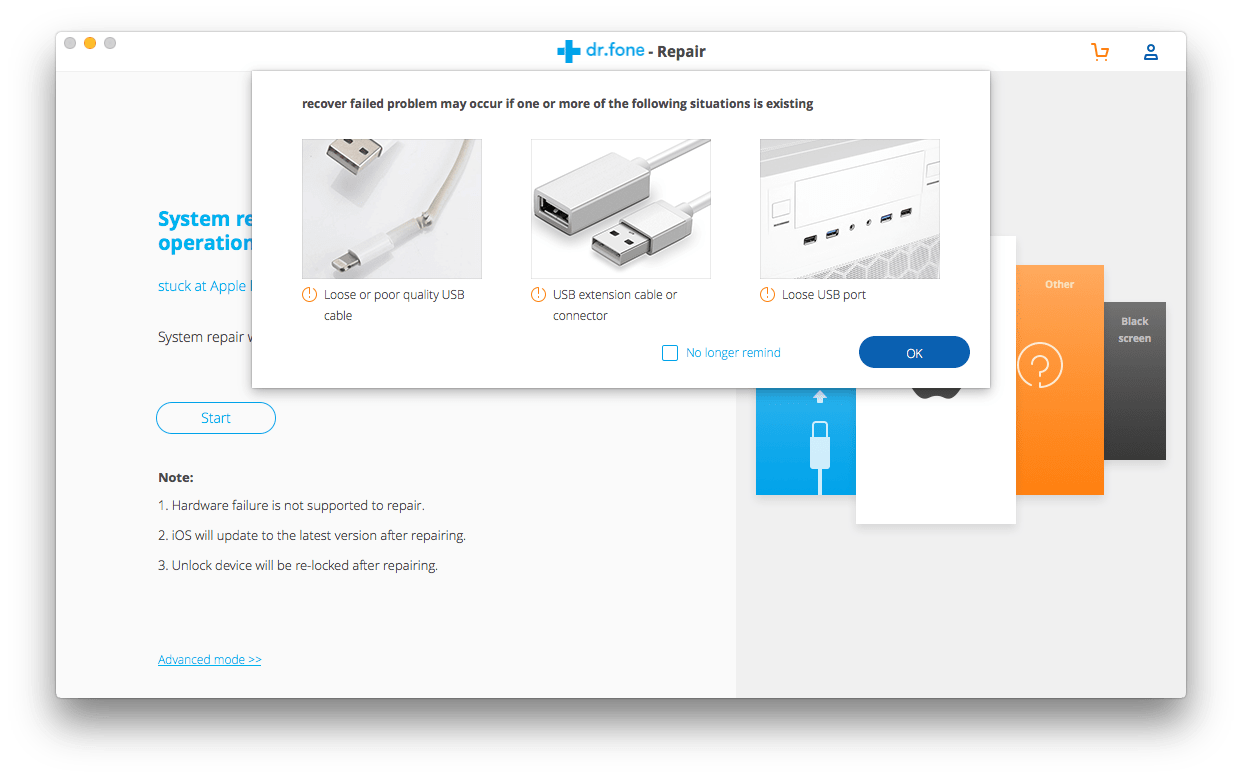
Dr.fone-Repair helps to fix Android system issues or repair iOS/iTunes when your mobile phone keeps crashing, working slow or get stuck…

This is a great feature Dr.fone contains in its kit, however, like its Recover, Dr.fone-Repair does a quite mediocre job to fix system issues. Sometimes, it just helps nothing, the problem keeps occurring.

In my test, I connected my brother’s Samsung phone to a computer, trying to fix the problem of repeated black screen. Everything seemed to be fine when fixing the problem via Dr.fone, but when restarting the phone, nothing happened and nobody could figure out the reasons.

dr fone repair

#4 Erase

Rating: 4/5

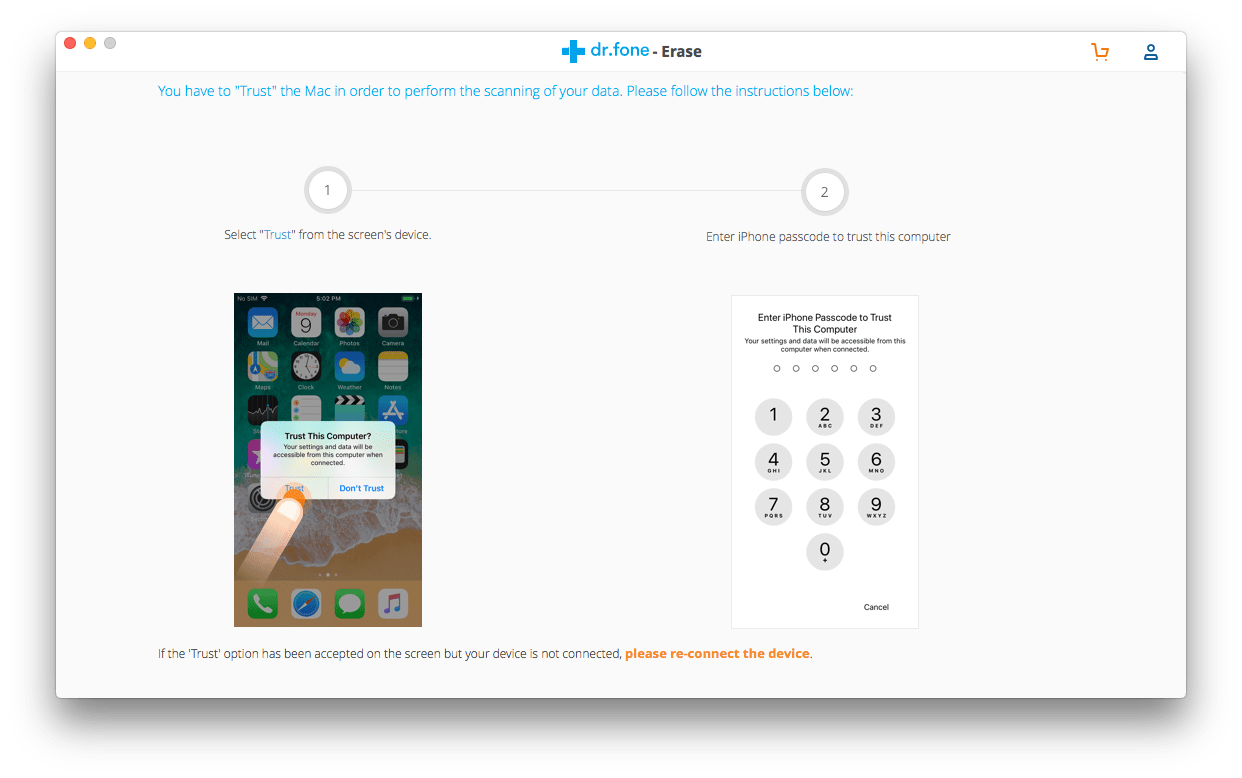
Dr.fone-Erase is truly a good and convenient tool to erase data from mobile phones. With several clicks, you can wipe your mobile phone permanently for sale or for other purposes.

dr fone erase

#5 Switch

Rating: 4/5

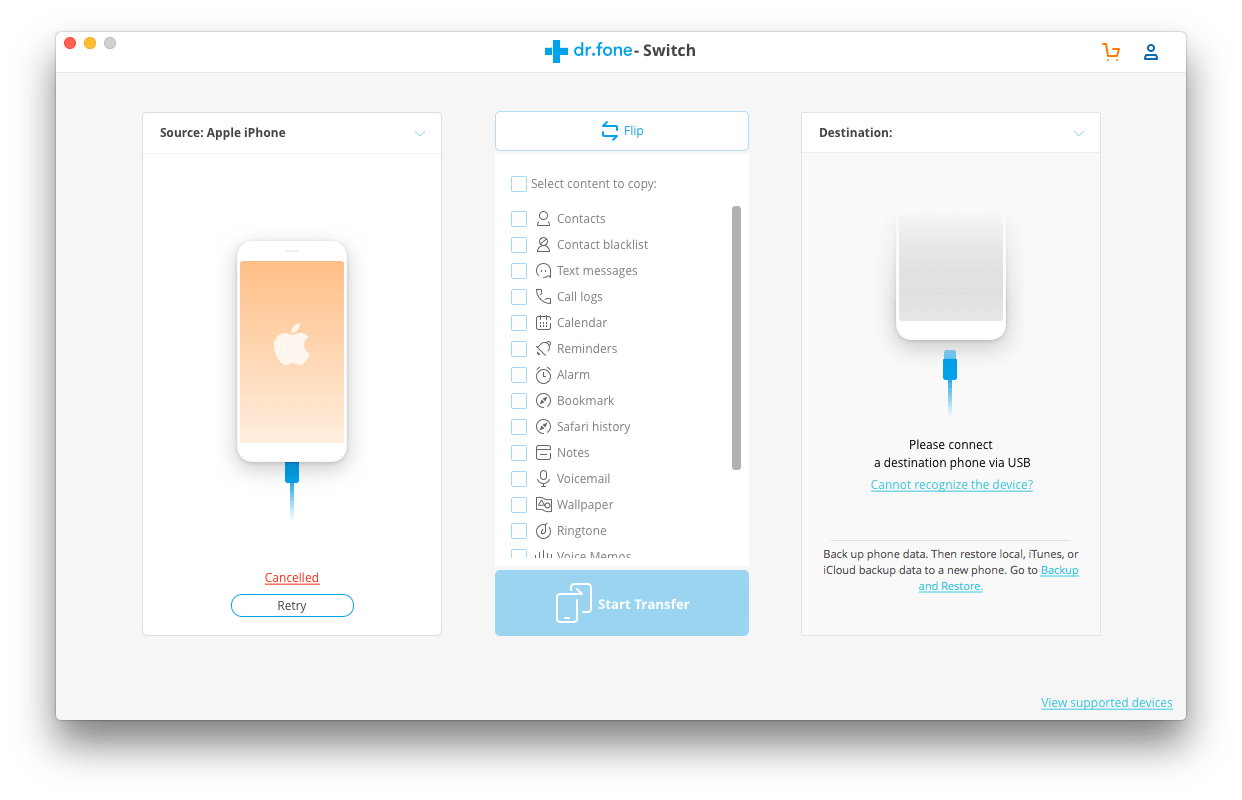
Dr.fone-Switch is another useful tool to transfer data between different devices, no matter it is iOS or Android. This is particularly useful when you switch from Android to iPhone, or from iPhone to Android.

The Switch feature recognizes devices fast and can smoothly transfer mobile phone data. However, some of the data may not be transferred successfully due to system compatibility or other unknown reasons.

dr fone switch

#6 Backup & Restore

Rating: 3.5/5

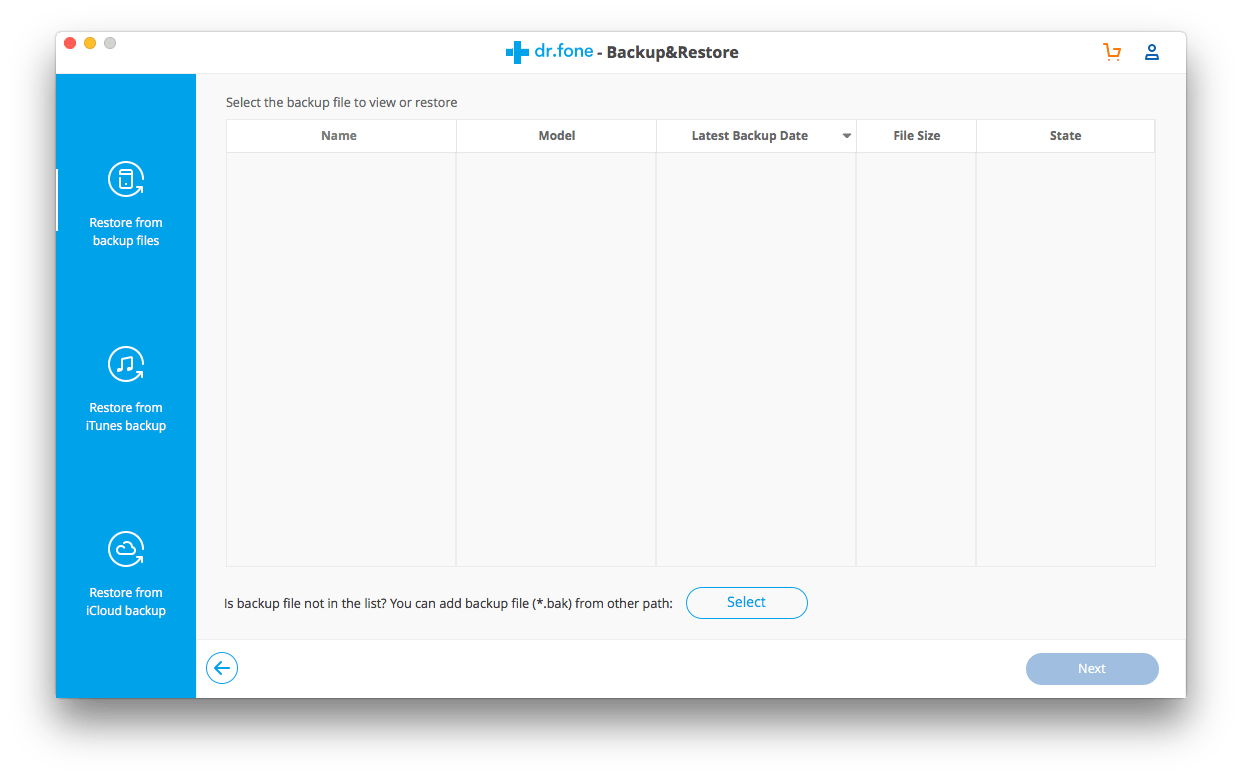
Dr.fone Backup & Restore not only allows users to backup files on mobile phone to computer, but also helps to restore files from backup. As for the Restore feature, it works as similarly as Dr.fone Recover, with 3 same recovery modes.

The backup feature does a good job, while the Restore feature, which requires high on technology, is very common. Same as its Recover feature, the Restore tool fails to recover all files.

backup and restore

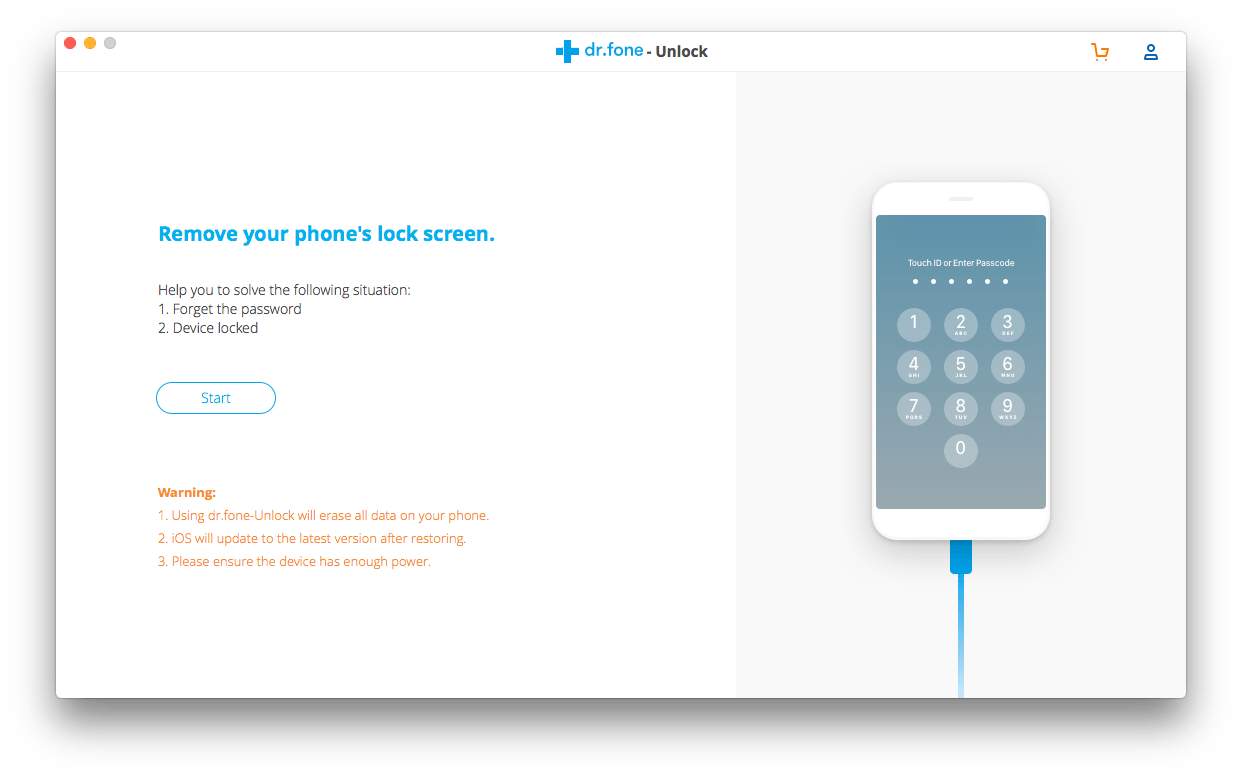
#7 Unlock

Rating: 4/5

Dr.fone Unlock exists to remove the lock for your mobile phone, when you forget the password or device locked for other legal reasons. However, unlocking a phone via Dr.fone Unlock is risky:

  • All your data will be erased;
  • iOS will auto-update to the latest version;
  • Process stops when power get low and you maybe in nowhere;

Yet, unlocking a phone without password itself is risky. So, take a second thought when trying to using this tool.

dr fone unlock

#8 Restore Social App

Rating: 3/5

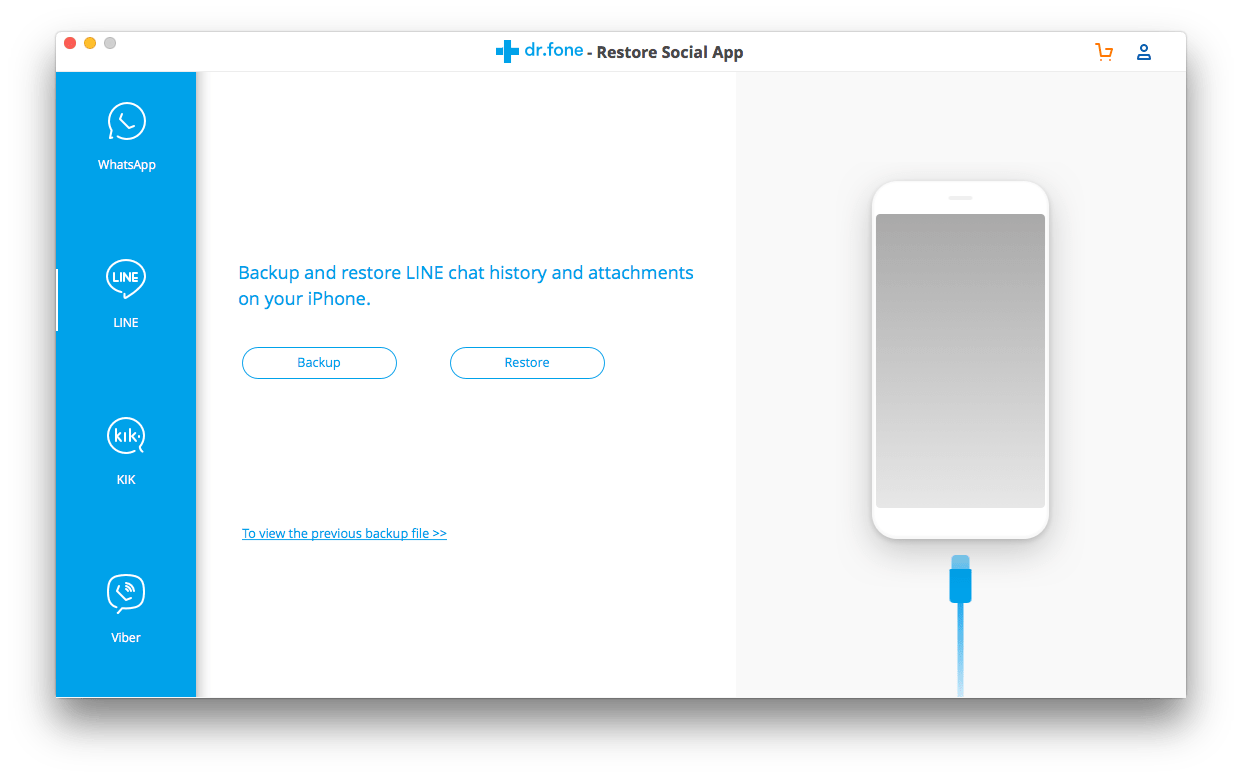
Dr.fone Restore Social App supports to transfer, backup and restore messages, chat history or attachments in WhatsApp, Line, KIK and Viber. This is quite useful when you accidentally uninstall an App and want the data back.

However, when talking about the Restore feature, no matter restoring files or social app, Dr.fone cannot yield the best results, either fails to find the deleted files or cannot open the recovered files.

dr fone restore social app

Dr.fone for PC VS Dr.fone for Mobile

As we mentioned above, Dr.fone provides both PC and mobile versions that allows users to use these tools directly on the phone or by connecting to a computer.

After testing these versions myself and read comments on different platforms, I realized that, the PC versions do a better job that the mobile version, basing on following facts:

  • Mobile versions get low ratings from users due to poor performance and limited features;
  • Dr.fone toolkit itself takes space on the device, while a computer leaves more space to run the toolkit;
  • The Recover process is relatively complicate, both the scanning and recovering procedure require high on device performance;

So, if possible, put the PC versions as your 1st choice to save further troubles. Conclusion Anyway, Dr.fone is safe and clean to use. Though its Recovery feature needs improvements, it is worth a try. By knowing Dr.fone is a tool kit for iPhone or Android phones, users can download and install a specific tool as needed, instead of paying for the whole toolkit with a high price.

Conclusion

Anyway, Dr.fone is safe and clean to use. Though its Recovery feature needs improvements, it is worth a try. By knowing Dr.fone is a tool kit for iPhone or Android phones, users can download and install a specific tool as needed, instead of paying for the whole toolkit with a high price.

Related Post

By |2020-01-19T10:45:59+08:00January 18th, 2020|

dupeGuru Review 2020: Is dupeGuru Safe, Free and Alternatives

We often copy and download the same file twice to different locations, or save the same document repeatedly just with the name changed. A large of copies would use up the memory space on our computers sooner or later. But sometimes we didn’t even realize that the computer is full of redundant copies.

Thanks to dupeGuru for Mac/ Windows, which can quickly retrieve and delete duplicate documents, music, pictures, etc. Now I will walk you through the dupeGuru reviews and alternatives, then you will know it better.

Dupeguru Review

  • What is dupeGuru?
  • dupeGuru Review: A Closer Look
  • Is dupeGuru Safe and Free
  • Top 3 Alternatives to dupeGuru

What is dupeGuru?

Dupeguru is an open-source, cross-platform GUI program that followed by many Reddit, Quora, advanced users, etc.. You can remove duplicate files on Mac, Windows, and Linux via Dupeguru.

It’s consisting of 3 application modes: Standard edition, Picture edition alongside the Music edition. Each mode contains 2~5 scan types, like Filename, Contents, TEXIF Timestamp and more. Some scan types in Dupeguru offer fuzzy-matching algorithm, which lets you find duplicate files without the exact name sharing.

Pros:

  • Multiple operational modes and scan types
  • The fuzzy matching algorithm helps to find similar files
  • Show Dupeguru results: filename, size, kind, match percent, bitrate (Music only) and dimensions (Picture only).
  • Display scanning process and details of scanned files
  • Preview duplicate files before deleting
  • Filter special files by keywords

Cons:

  • The interface is old-fashioned
  • The features are not clear at a glance
  • Not friendly enough for novices
  • Bad support for the newest system version
  • Failed to detect the identical text, music, etc. files at times

dupeGuru Review: A Closer Look

This part will mainly present the dupeGuru review for Mac. Since the software for Windows has similar functions and was created by the same developer with Mac version. We won’t repeat the introduction again.

Download & Installation

The original developer of dupeGuru- Hardcoded Software didn’t maintain the software anymore. You have to go to https://dupeguru.voltaicideas.net/ to download the program.

There are 4 download options in Voltaic Ideas: Windows (x64), Linux (ppa), OS X, and Source. The Windows and Mac ones are the most popular options.

System Supported OS Size
Windows Windows 98/Me/XP/Vista/Win 7/Win 8/Win 10, etc. 11.11MB
Mac OS X 10.8 or later 4.5MB

As a lightweight application, the installation of dupeGuru will not take up much space.

Interface

dupeGuru for Mac has an uncluttered and simple interface.

It’s divided into 3 sections. From the first section, you can see 3 application modes: Standard, Music, and Picture. Below shows the scan types, as we mentioned before, the types under each mode are varying. Continue to look down, it is the field used for adding scan folders.

You can scan folders in a batch, both of them display the name and state (normal, reference and excluded).

Interface

Preferences

Click dupeGuru in the status bar at the top > choose Preferences from the drop-down menu > the dupeGuru Preferences dialog will pop out.

In the basic tab, you can set the filter hardness from 0 to 100. The small value should get more results while the large one gets fewer. Besides, you are also able to define the font size, word weighting, ignore files smaller than appointed sizes, etc.

Swift to advanced tab, you can check or uncheck the boxes of more options, type your custom command and determine the behavior of Copy and Move operations.

To deeply understand each setting, please visit: https://www.hardcoded.net/dupeguru/help/en/preferences.html.

Preferences

dupeGuru Results

This dialog demonstrates the scanning results of your duplicate files.

  • Details– Empower you to look through the details in the text of a selected file. It’s helpful to check if a duplicate really is a duplicate.
  • Dupe Only– Once enabling this mode, the system will automatically filter duplicate files (displayed in orange color) to the front row.
  • Delta– Show the value relative to the duplicate’s reference. For example, if a duplicate is 31KB and its reference is 186KB, the size column will give you the value -155KB.
  • Preview- Let you look at the original file directly before handling it.

Besides, there is a gear icon on the toolbar that allowing you to do more operational of the scanned files.

dupeGuru Results

How to Use dupeGuru on Mac?

  1. Launch dupeGuru on Mac.
  2. Select a scanning mode and type.
  3. Click on the “+” button or “Load Results” button to add the folder to the scanning window.
  4. Start to scan duplicate files and wait for the process.
  5. Once completed, mark the duplicate files that you want to delete in the Results window, and verify the selections.
  6. Click the gear icon on the top left corner, and choose “Send Marked to Trash” option. All selected duplicates will be removed at once.

2 FAQs about dupeGuru

Q 1. Is dupeGuru safe to use on compatible platforms?

A: From my aspect, dupeGuru is super safe.

  • Download: It’s a green and reliable program that has been served for users for many years. To avoid downloading dupeGuru malware or virus, you should get the software on the official site or authoritative download sites.
  • Install: The installing process is very fast, secure, and no additional virus files or adware will be installed.
  • File deletion: Not only does dupeGuru allow you to inspect duplicate files before deleting them, but all the selected files to ignore list. So you will no need to worry about deleting important files by mistake.

Q 2. Is dupeGuru free?

A: I am sorry to say, dupeGuru is not 100% free. After erasing 10 copy files, you have to donate $9.99 to continue your work.

Top 4 Alternatives to dupeGuru

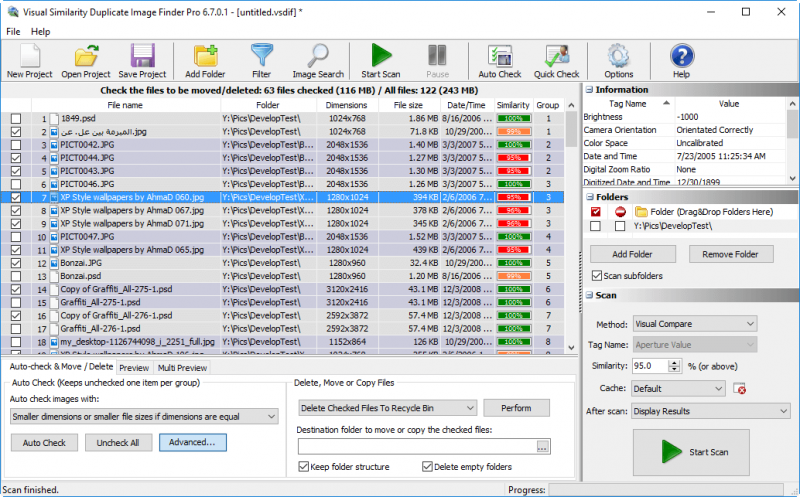
If you have a little trouble getting started with dupeGuru or it can’t meet your demands, take a shot at dupeGuru alternatives. The well-known tools- Gemini 2 and Easy Duplicate Finder are not specifically mentioned below, you can also take a crack at them.

#1 Cisdem Duplicate Finder (Windows and Mac)

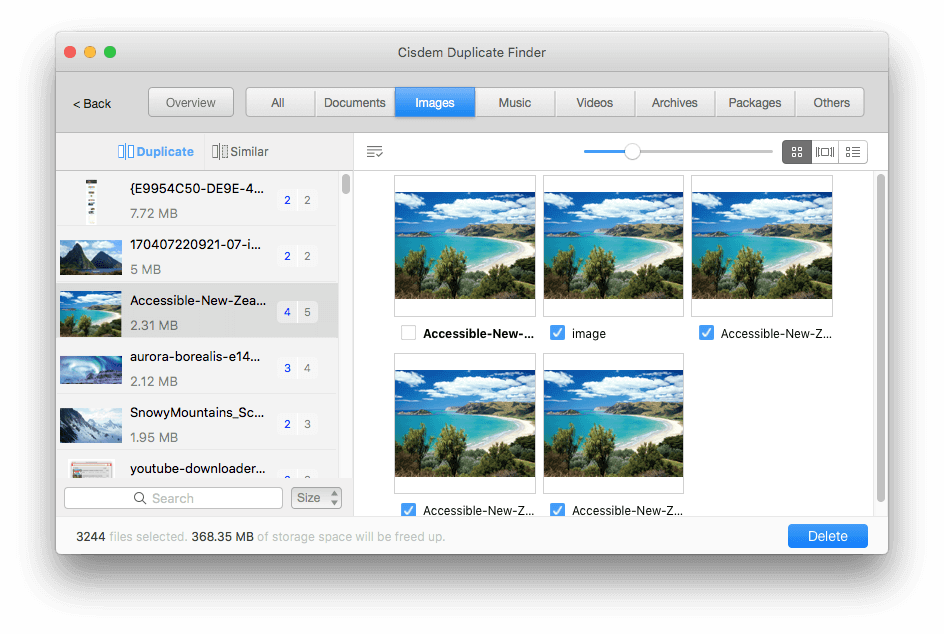
Known to be one of the best duplicate file finders for Mac and Windows, Cisdem Duplicate Finder runs the task of detecting and deleting the copied files efficiently. It designs for people who desire to get rid of duplicates from a variety of file types, like videos, music, archives, pictures, documents, etc. Plus, this dupeGuru alternative can accurately and quickly scan the files in internal, external hard drive as well as similar images in Mac’s Photos and iTunes.

Cisdem Duplicate Finder (Mac)

Pros:

  • Ignore list to exclude files you don’t wish to scan
  • Reclaim an amount of storage space on the hard drive
  • Preview and compare scanned files in different filters
  • Works with most popular file formats

Cons:

  • Not free

Download for Mac | Download for Win

#2 Auslogics Duplicate File Finder (Windows)

Auslogics Duplicate File Finder, an intelligent dupeGuru alternative, offers free features to locate duplicates on Windows and free up space. It scans your specified folders for copies and sorts the results through images, music, videos or others. You are capable of removing duplicates permanently or keeping them in a rescue center. Also, you can configure the search parameters, such as types, file size, names, dates, and so on.

Auslogics Duplicate File Finder (Windows)

Pros:

  • Simple and intuitional interface
  • Fast to scan files, detect duplicates and provide results
  • Bring back accidentally deleted files via rescue center
  • Plenty of operational options for scanning, filtering, marking

Cons:

  • Might show inaccurate results
  • Can’t deeply dig out identical files

Free Download

#3 Duplicate Sweeper (Windows and Mac)

When speaking about the alternatives to dupeGuru, Duplicate Sweeper should be on the list. It assists you to add special folders to the search, including documents, music, photos, contacts, etc.. After you click the “Start Duplicate Search” button, you may get a bunch of duplicate files, which display in a graphical representation classifying into various types.

Duplicate Sweeper (Windows and Mac)

Pros:

  • Easy-to-navigate interface
  • Find hidden duplicates
  • The scanned duplicates are shown in groups
  • Offer preview screen

Cons:

  • Shareware, the free trial can only detect duplicates

Download for Mac | Download for Win

#4 Awesome Duplicate Photo Finder (Windows)

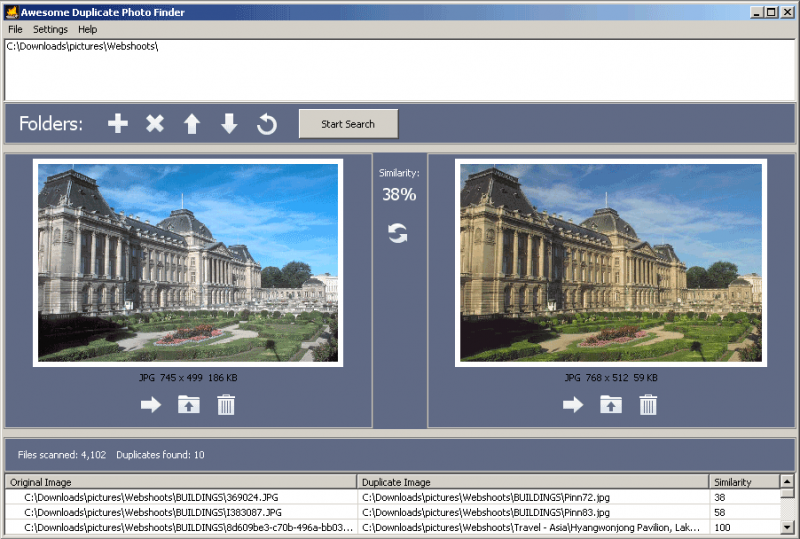
Famous for duplicate photo retrieving, this dupeGuru alternative undertakes an astonishing task in discovering copied images. With custom scanning, you can easily catch sight of the duplicate pictures in major formats (JPG, PNG, BMP, GIF, etc.). In addition, it’s able to compare compressed images or even images with corrected colors. Just preview the pictures to determine which one to remain, and which one to erase, finally remove the unneeded duplicates.

Awesome Duplicate Photo Finder (Windows)

Pros:

  • Support to compare images visually
  • Personalize the degree of similarity between items
  • Fast folder scanning speed

Cons:

  • Primarily applied to duplicate photo findings
  • Missing multi-selection to remove duplicates
  • Bad support on new Windows system

Free Download

Verdict

That’s the whole on dupeGuru Review. In short, it’s a piece of safe and effective software to find and eliminate duplicate files on Mac and Windows. dupeGuru contains some intricate parameters that make it uneasy to use for newbies. But fortunately, you have multiple dupeGuru alternatives when it comes to duplicate files detecting and removing. Anyway, pick the most suitable one for yourself and your system.

Related Post

By |2021-11-18T14:52:36+08:00January 3rd, 2020|

7 Best iTunes Duplicate Removers for Mac and Windows 2020 (Free Included)

Music enthusiasts may store an immense collection of songs in the iTunes music library, but inevitably there will be countless duplicate tracks, which take up much hard disk space and bore you with listening to music. Hence regularly deleting duplicate songs (or movies, podcasts, TV shows) from the iTunes library is a challenging and duty-bound task.

How to delete duplicates in iTunes? It’s impractical to manually remove duplicate songs. Fortunately, you can pull the job off with the best iTunes duplicate removers. Here we have listed top 7 iTunes duplicate remover for Mac and Windows, be it free or paid.

7 Best iTunes Duplicate Removers for Mac and Windows

#1. Gemini 2

Price: $19.95

Official Website: https://macpaw.com/gemini

Supported OS: macOS 10.10 or later

Download the FREE trial

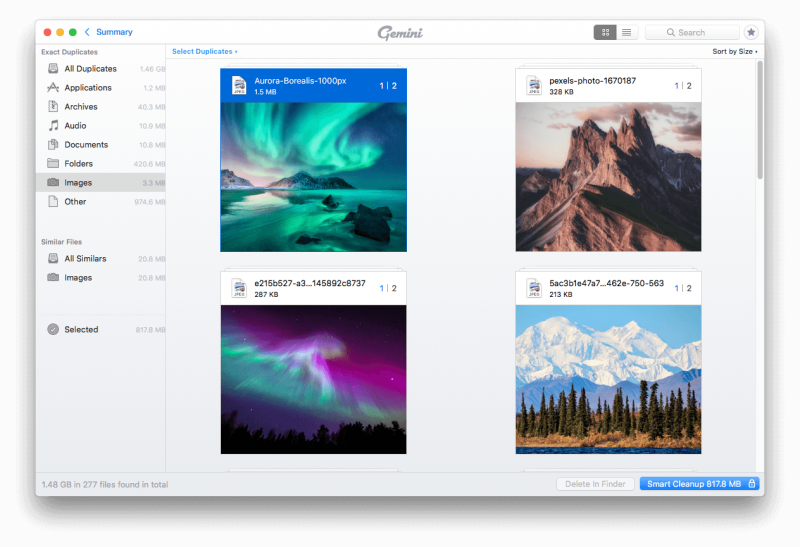
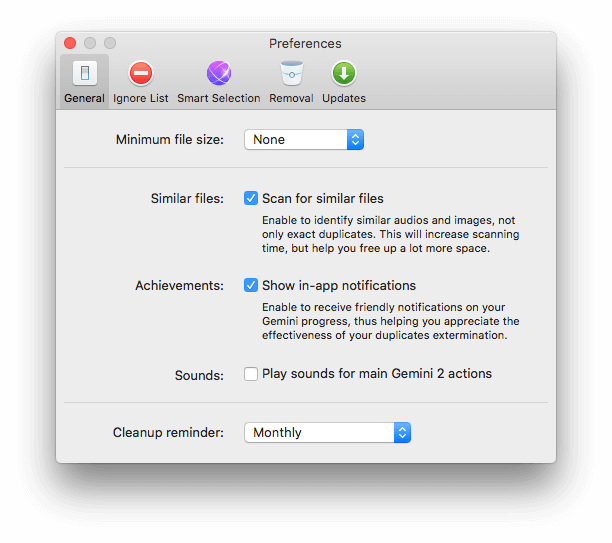
Gemini 2, developed by MacPaw, is a formidable and the best iTunes duplicate remover that quickly identifies the duplicate or similar files on Mac and external hard drive. It helps you scan the iTunes Music Library, Photos Library, Home Folder, etc., and weeds out space-guzzling copied files. You can sort the results of iTunes duplicates by various criteria, like Size, Name, Count, Selected Count, etc.

best itunes duplicate remover 1- Gemini 2

Quick Steps on How to Remove Duplicates in iTunes:

  1. Drag-n-drop all iTunes folders or just the Music folder to the software; alternatively, click on the “+” button to add folders from Finder.
  2. Click on “Scan for Duplicates” button.
  3. Once the scanning process completes, click the “Review Results” button to have an overall look.
  4. Click the “Smart Cleanup” button to delete duplicate songs.

Note: Gemini will require opening the iTunes app to detect duplicates in your Music Library.

Highlight Features

  • Identify duplicate songs, images, folders, downloads, documents, videos, etc.
  • Accurately find out the similar matches
  • Locate duplicate files on your Mac as well as external drive
  • Remove duplicate iTunes listings

Where It Falls Short

  • The free version only allows you to remove 500MB duplicates
  • No similarity threshold settings
Visit Gemini 2

#2. Easy Duplicate Finder

Price: $39.95

Official Website: https://www.easyduplicatefinder.com/

Supported OS: macOS 10.6 or later; Windows Vista, XP, 7, 8, 10

Download for Windows | Download for Mac

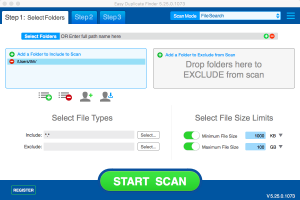
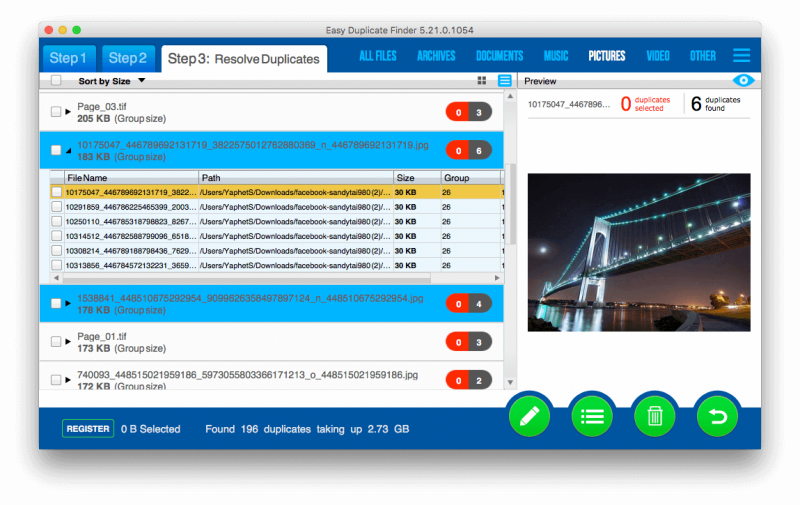
Easy Duplicate Finder (EDF) is a solid iTunes duplicate remover that’s specially designed for locating, organizing and deleting duplicate files. It boasts different scanning modes and compares the results by size, name, and content. You can get rid of duplicate files in a breeze from a vast assortment of sources, such as iTunes, Photos, Google Drive, Dropbox, Windows Media Player, or any directory of your choice.

best itunes duplicate remover 2- Easy Duplicate Finder

Quick Summary on How to Delete Duplicates in iTunes:

  1. Select “iTunes Scan” from the Scan Mode drop-down menu.
  2. Add folders (entire iTunes library or specific ones) to include to the scan.
  3. Click on the green “START SCAN” button.
  4. Click on the “GO FIX THEM” button to review the scanned results.
  5. Click the delete button.

Where It Excels

  • Find a large number of duplicates via over 10 scan modes (for various types of searches)
  • Define the minimum and maximum file size
  • Undo the action for emergency recovery
  • Offer a detailed report and file preview option

Where It Falls Short

  • The free version processes merely 10 duplicate groups
  • Sometimes it would show false positives
Visit Easy Duplicate Finder

#3. Cisdem Duplicate Finder

Price: $29.99

Official Website: https://www.cisdem.com/duplicate-finder.html

Supported OS: macOS 10.10 or higher; Windows 10 and 11

Download for Mac | Download for Windows

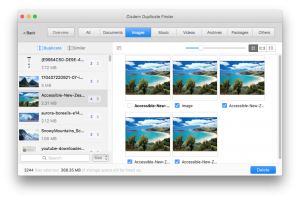
Cisdem Duplicate Finder is an uncluttered iTunes duplicate remover for Mac that uses MD5 value check-sum algorithm to compare files based on name, time, size, random parts of content, etc. It can rapidly find duplicates in iTunes or other programs with the app file structure kept. Also, this best iTunes duplicate remover will classify the detected duplicate files into 7 categories, including Music, Videos, Archives, Packages, Images, Documents, and Others.

best itunes duplicate remover 3- cisdem duplicate finder

Quick Steps:

  1. Come over to iTunes folders and select them. (First step is quite similar to Gemini.)
  2. Click on the “Scan” button.
  3. After scanning, you can check the duplicates in the preview window.
  4. Click the “Delete” button.

Highlight Features

  • Clean duplicates from iTunes & Photos (iPhoto) app
  • Find similar images and select them via 7 options (Smart, Newest, Oldest, Largest, Smallest, Highest Resolution, and Lowest Resolution)
  • Scan duplicates stored on internal & external storage media
  • Provide a few scanning, preview, filtering and removal options

Where It Falls Short

  • The free version only enables you to find iTunes duplicate (can’t take a test)
  • While scanning, it won’t tell you which location is being scanned
Visit Cisdem Duplicate Finder

#4. ManyProg iTunes Duplicate Remover Free

Price: Free

Official Website: https://manyprog.com/itunes-duplicate-remover.php

Supported OS: Windows XP, 7, 8, 10

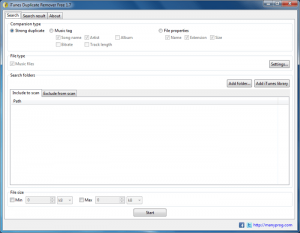
As its name suggests, ManyProg iTunes Duplicate Remover Free is the best free iTunes cleanup software for Windows that assists you to detect duplicate songs, images and videos in iTunes along with your local drives. It’s equipped with an unpolished yet intuitive interface which features 2 tabs- Search and Search result. The first tab is for adjusting parameters, the second one is used to take actions for scanned results.

4- ManyProg iTunes Duplicate Remover Free

Quick Steps:

  1. Choose one of the comparison types from strong duplicate, music tag, and file properties.
  2. Click on the “Add iTunes library” button and wait until the iTunes app launches.
  3. Hit the “Start” button.
  4. Switch to “Search result” tab and mark the dupes to be deleted.
  5. Navigate to “Action” > “Remove”.

Highlight Features

  • Specify the music file format types for duplicates searching
  • Add folder to include to scan or exclude from scan
  • Set the Min and Max file size in B, KB, MB, GB or even TB
  • Able to set 2 criterions for duplicates automatic selection
  • Support 13 UI languages

Where It Falls Short

  • Before you start to scan duplicates, it advises the program ManyProg PC Cleaner to you
  • Can’t dig out deeper duplicates and similar photos
Visit iTunes Duplicate Finder Free

#5. Tune Sweeper

Price: $25 for 2 Macs or 2 Windows PC; $15.99 for 1 Mac on App Store

Official Website: https://www.wideanglesoftware.com/tunesweeper/

Supported OS: macOS 10.8 or higher; Windows Vista, 7, 8/8.1, 10

Supported iTunes: iTunes 10 or later

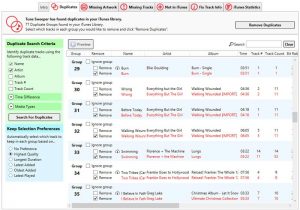
Tune Sweeper, a piece of thoughtful iTunes cleanup software, aims squarely at deleting repeated tracks (songs included) in iTunes library and repairing improper or missing track details. This best iTunes duplicate remover lists the duplicate tracks in groups and suggests which tracks to keep according to your preference: Highest Quality, Longest Duration, Latest added, Oldest Added, Latest Played, or No preference.

best itunes cleaner software 5- tune sweeper

Simple Steps:

  1. Click the “Search for Duplicates” button, your iTunes library will be scanned and the software will return all the duplicates founded in your iTunes library.
  2. Select which duplicates to keep automatically or choose dupes manually.
  3. Click on the “Remove Duplicates” button.

Highlight Features

  • Remove duplicates or lost tracks from iTunes library
  • Promptly load the missing artwork and information of tracks
  • Identify the tracks from Apple Music
  • Detect new tracks on the hard drive, which can’t be found in iTunes

Where It Falls Short

  • Poor performance
  • Confusing UI
Visit Tune Sweeper

#6. Dupe Away

Price: $19.99

Official Website: https://macroplant.com/dupeaway

Supported OS: macOS 10.6 or later; Windows 7, 8, 10 or later

Dupe Away is lightweight yet elegant iTunes duplicate remover that empowers you to eliminate duplicates in iTunes music library (even on large iTunes library) and free up some disk space. It consists of 4 parts: Dupe Files, Missing Files, Playlist Dupes, and Abandoned Files. Each part performs different functions and gives you a surprise. Thanks to this best iTunes duplicate remover, we can deal with and manage iTunes items without the bloat.

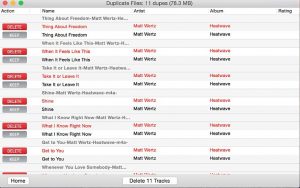
best itunes cleaner software 6- dupe away

Quick Summary:

  1. Click the first icon- “Dupe Files” to start scanning duplicates from iTunes Library. Wait for a while, the software will show you the duplicates.
  2. Like Tube Sweeper, it automatically determines which dupes to remove. Or you can manually select the options.
  3. Click the “Delete Track (s)” button.

Note: Before launching the best iTunes cleanup software, be sure to run iTunes app > click on iTunes in the menu bar > click on “Preferences…” go to “Advanced” tab > check the option “Share iTunes Library XML with other applications”.

Highlight Features

  • Easy-to-understand interface
  • Remove duplicate tracks & playlist, lost files from iTunes Library
  • Recover the Music folder that is not in iTunes
  • Set the highest priority for iTunes tracks to keep

Where It Falls Short

  • Can’t actually clean duplicates with the free trial
  • Can only handle iTunes duplicate files
Visit Dupe Away

#7. MacFoot iTunes Duplicates Cleaner

Price: $14.95

Official Website: http://www.macfoot.com/itunesduplicatescleaner/

Supported OS: Mac OS X 10.5.8 or above; Windows (no further explanation)

Packed with an open-and-shut UI and with most of the options displayed on the main window, MacFoot iTunes Duplicates Cleaner makes it simple to remove duplicates in iTunes library. It uses the fantastic linear sorting algorithm, which works on iTunes music libraries of any size. You can custom the conditions (Title, Artist, Album name, File Extension) for intelligently putting the duplicated tracks into groups.

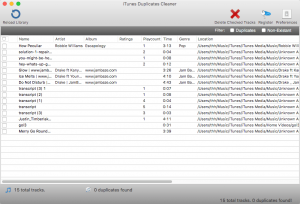
7- MacFoot iTunes Duplicates Cleaner

Quick Steps:

  1. Click on the “Find Duplicates” button to scan your iTunes library.
  2. Click on the “Auto Mark Duplicates” button to check options for removing.
  3. Click the “Deleted Checked Tracks” button to clean duplicate tracks from iTunes.

Note: If it’s your first time to use MacFoot best iTunes duplicate remover, you’d better tweak the “General” and “Condition” settings in “Preference”.

Highlight Features

  • Find duplicated tracks in iTunes and sort them into groups
  • Automatically mark duplicates depending on the condition settings
  • Reload the iTunes library and render up all scanned results
  • few clicks to clean iTunes duplicates

Where It Falls Short

  • Can’t shut up the software thoroughly after uninstalling it on Windows 7
  • Only an iTunes duplicate remover, no more practical functions
Visit iTunes Duplicates Cleaner

4 FAQs about iTunes Duplicate

Why Does iTunes Duplicate Songs?

  1. iTunes will check the option to “Copy files to iTunes Media folder when adding to library” by default, which creates a new host of copies into the folder.
  2. When untagged tracks added, iTunes will regard all of them as Unknown Artist/Unknown Album and set the names to <Filename>.
  3. With so many tracks in the iTunes library, it’s hard to avoid importing songs over and over again in the older version of iTunes. (Personal reason)
  4. The new version of iTunes has the power to hunt for duplicate item names before adding them, but it can’t identify potential duplicates, like the same song with the different file name.

How to Stop iTunes from Duplicating Songs?

  1. Run the iTunes app, and go to preference setting > “Advanced” tab > clear the checkbox- “Copy files to iTunes Media folder when adding to library”.
  2. Mark the whole album as a compilation to avoid the multi-listing of the album involving one song each. (The recommendation from apple.stackexchange.com
  3. Use TagFromFilename script to fix the tags (from discussions.apple.com) before importing tracks into iTunes. Or use the best iTunes duplicate remover to get rid of those redundant files.

How to Find Exact Duplicates in iTunes?

Find basic duplicates in iTunes:

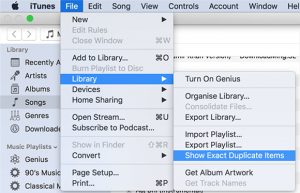
Mac: Open iTunes > pull down the “File” menu > choose “Library” > “Show Duplicate Items”.

Windows: Open iTunes > go to “View” > “Show duplicate items”.

Note: it will get the duplicates that cover songs with the same name but with various artists.

Find exact duplicates in iTunes:

In the Mac computer, you should run iTunes > hold down the Option key > head over to “File” > “Library” > “Show Exact Duplicate Items”.

find exact duplicates in iTunes mac

If you are using Windows PC, open iTunes > hold down the Shift key > click on the “View” in the menu bar > “Show Exact Duplicate Items”.

Quick Way to Delete Duplicates in iTunes

To quick delete duplicates in iTunes directly, you should continue with the above steps. After you find out the (exact) duplicates, simply choose the song you want to remove > right-click it > choose “Delete from Library”. However, the built-in duplicates removing feature is not as powerful as the best iTunes duplicate removers, because it:

  1. Can’t eliminate “dead” iTunes files
  2. Merely matches tracks by the names
  3. Doesn’t sync across all of your devices successfully

Bottom Line

We’ve had a look at 7 of the best iTunes duplicate remover, along with 4 frequently asked questions about iTunes duplicate. Overall, we believe that Gemini (Editor’s choice), Easy Duplicate Finder, and Cisdem Duplicate Finder are the best all-round performer for various duplicate-deleting situations. If you only need a free iTunes duplicate remover to do a basic clean up on Windows, Manyprog iTunes Duplicate Remover Free is suitable for you.

Related Post

By |2021-11-18T14:19:08+08:00January 3rd, 2020|

Freedom App Review 2020: Complete Guides (6 Alternatives)

Apps and websites are too fascinating that make you easy to distract while studying or working. It’s reasonable to expect that you may need to block them, no matter for stripping out time-wasting apps & sites, protecting your privacy or preventing dangerous or explicit contents.

There are many anti-social apps (Internet blocker) and app blocker tools out there, one of which is Freedom- a cluttered app, can effectively eliminate your concerns. How does freedom app work? Does freedom app cost money? In this Freedom app review, I’m going to share my personal takes on using the program.

Quick Summary

Freedom app, available on multi-platforms (Mac, Windows, iOS, and Android), aims to block time-consuming websites & apps. With this app blocker or anti-social app, you can minimize the distraction and keep a good habit of using social media. It is marketed towards writers, editors, executives, students, researchers, etc. who desire a bit of assistance to get work done quickly.

Pros:

  • Comfortable design for interface and logo
  • Block apps, websites or the entire Internet
  • Start sessions on-the-fly or schedule beforehand
  • Create customized block lists without quantity limitation
  • Sync blocks across all your device

Cons:

  • Must work with the browser, not easy to operate
  • Too expensive for long-term users
  • Might be tired of the privacy issues around using its VPN and the price (Reddit feedback)

Freedom App Review

Download & Installation

Platform Download From How to Install Supported OS
Mac FreedomSetup.dmg Drag Freedom to the app folder 10.8 or higher
Windows FreedomSetup.exe Follow installer instructions Windows Vista, 7 or higher
iOS App Store Follow instructions 9 or higher
Android Google Play Store Follow instructions 5.1 or higher

Freedom app is absolutely safe to download. You can get the download from https://freedom.to/downloads. After installation, you are supposed to create an account on Freedom.to for Mac and Windows. While for the iOS version, you can sign up a new account within the application directly. But to block contents from most browsers and apps, you need to allow the VPN configuration.

Feature & Capabilities

Schedule a session in advance

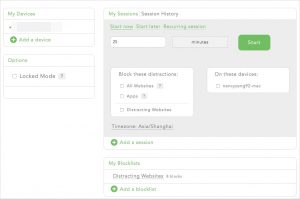
There are two options for you to schedule a session in advance, respectively are Start Later and Recurring Session. Start Later means scheduling a single session ahead. You only need to choose a start and end time for your session. As for Recurring Session, it means making a schedule for a recurring session which repeats on a specific day. You should pick a start, end time and the days you want the session to repeat.

Add a blocklist

To block annoying URLs, you need to open your dashboard and click “Add a blocklist” button to create Freedom app blocklist. The most distracting streaming sites and categories have been listed, like Facebook, Instagram, Snapchat, Social, TV/Video, Games, News, Adult, Shopping, etc., or you can enter the domain that hasn’t been shown in the list.

freedom-add-blocklist

Website exceptions

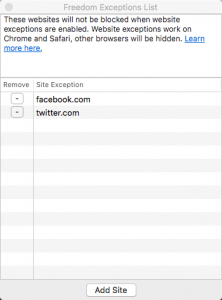
When you enable the website exceptions on Freedom app Mac, the sites added Freedom Exception List won’t be blocked. You can block all site sessions and sessions that merely use your customized blocklists. Both of them will be whitelisted.

But things to be noted are:

  1. Windows version doesn’t support website exceptions at the present;
  2. You are unable to add website exceptions during active sessions;
  3. Website exceptions only work on Chrome and Safari, and other browsers will be hidden during sessions.

freedom-website-exceptions

Locked mode

The locked mode feature of the Freedom app makes it tough to quit an active block session. You can’t remove blocklists or devices from the list when the locked mode is enabled.

Mac/Windows: go to dashboard > check the Locked mode under Options

iOS: tap the Settings tab > toggle Locked Mode

How Does Freedom App Work on Mac and Windows?

Scenario one: block apps on Mac/Windows

  1. Run the Freedom app and log in your account.
  2. Click the Freedom app icon in the menu bar.
  3. From the pull-down menu, choose “Manage Blocked Desktop Apps” option.
  4. A new dialog was brought up, just select the apps you intend to block.

Scenario two: block websites with Internet blocker

  1. Navigate to Freedom dashboard and log in.
  2. Add a site to block by entering the URL, or find the site from the list below. If you want to block all websites, choose “All Websites” when creating a session.how does freedom app block website on mac/windows
  3. Customize the session and start it.

How Does Freedom App Work on iOS?

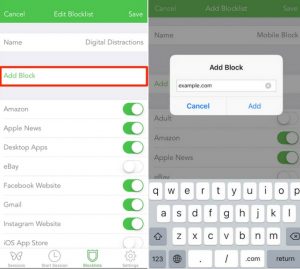
  1. Navigate to Blocklists tab on the bottom.
  2. Edit one of your blocklists or create a new one by choosing “Add a blocklist”.
  3. Toggle the pre-made filters to add the sites and apps, or tap “Add Block” option to add other items that you would like to block.
  4. Tap “Save” at the top-right corner to temporarily block apps/websites on iPhone/iPad.

how does freedom app work on ios

To know how to block apps/sites on Android, you can check https://support.freedom.to/getting-started/set-up-installation/installing-freedom-on-your-android-device. I won’t explain it in detail here.

FAQ about Freedom App

Does freedom app cost money?

Yes, it needs to cost money. Although Freedom app offers a free trial version, it has some limits. You can’t active the functions, like:

  • Locked Mode
  • Recurring Scheduling
  • Advance Scheduling
  • Freedom Perks
  • Unlimited blocking sessions

Monthly Yearly Lifetime
$6.99/month $29/year $129

How to Delete Freedom App Account?

  1. Visit billing management page: https://freedom.to/profile.
  2. Click “Delete Account” under Account Type: Trial.
  3. It will jump to a new page. Click “Delete Freedom Account”.

If you have purchased your subscription through the App Store, you will follow the same procedure, but the “Manage Billing” link will take you directly to Apple’s site where you can manage your subscriptions.

If you purchased your subscription through the App Store, the “Manage Billing” link will take you to Apple’s website straightway.

Top 6 Apps Like Freedom(Free Included)

#1. Cisdem AppCrypt (The most effective, easy to use for Mac)

Price: $29.99/lifetime

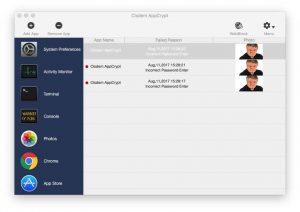
Cisdem AppCrypt is a remarkable, dedicated Freedom app alternative for Mac to block apps and websites. On the one hand, it can password protect your Mac privacy, no one having the ability to access your Mac apps without your permission. On the other hand, it will improve the productivity of your employees by blocking attractive websites and social software. More importantly, if you are a parent, Cisdem Freedom app alternative will help you prevent the kids from pornography, gambling sites, inappropriate games, and violent material

You can develop a long-term schedule to limit time spent online. If somebody else tries to open the locked apps or websites (with the wrong password), your Mac front camera will take a photo of the intruder.

freedom-alternative-1

Download the Free Trial of Cisdem AppCrypt >>

#2. FocusMe (Mac and Windows)

Price: £4.9/month, £29.99/year, £119.99/lifetime

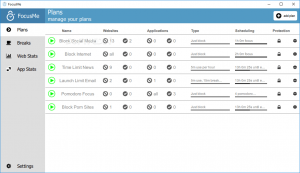
FocusMe is a feature-rich app like Freedom that blocks an unlimited number of websites and apps so you can concentrate on working. As same as Cisdem Appcrypt, it enables you to whitelist part of sites but block the rest. You can set a variety of schedules, such as morning routine, working routine and more. It has built-in Pomodoro technique which lets you stay focused and productive.

When it comes to FocusMe vs Freedom app, I would recommend FocusMe for desktop users. But for Mac-only users, Cisdem AppCrypt is more affordable with powerful functions.

freedom-app-alternative-2

#3. RescueTime (Mac, Windows, iOS, and Android)

Price: $9/month, $72/year

RescueTime is a piece of time management software mixed with a website blocker, cutting off your visiting to time-sucking websites. This Freedom app alternative runs in the background, monitoring all the apps and websites you have used during various times of the day and generating detailed reports. Although RescueTime has the ability to block websites on different platforms, it’s not as robust as some of other Freedom app alternatives, which still asks for a certain amount of self-restraint.

freedom-app-alternative-3

#4. FocalFilter (Windows)

Price: Free

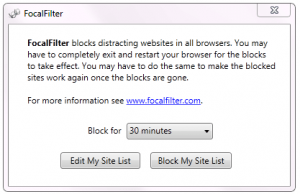
FocalFilter is a free, simple app like Freedom that empowers you to tentatively block unproductive websites. It supports almost all the web browsers, including Chrome, Firefox, Safari and IE. You can add websites to the block list and configure a time interval, up to 12 hours. Once blocked, you will have no chance to access the websites. This Freedom app alternative works with hosts file, which means the blocks are system-wide.

freedom-app-alternative-4

#5. StayFocusd (Chrome)

Price: Free

StayFocusd is an extension alternative to Freedom app, making it incredibly easy to install and uninstall. It helps you boost productivity by restricting the time wasted on distracting websites.

Not only can this Freedom app alternative block specific subdomains and entire websites, but also control how long you can view certain sites.

#6. LeechBlock (Firefox)

Price: Free

LeechBlock is similar to StayFocusd, in that it’s an extension, but a Firefox extension. It’s also a good Freedom app alternative that forces you to focus on studying or working and keep away from addictive sites. Just limit the access by setting the amount of time on a given site.

Conclusion

I really appreciate Freedom app for its combination of multi-platform, power and elegant design. It enables you to fulfill the task efficiently with its basic functions- block websites and apps. These are also other Freedom app alternatives for you to keep focused. Some of them are more useful or affordable. You can try them out if you tend to find the most appropriate one for yourself. In short, productivity is a key factor in how much time and effort you applied to your works.

Related Post

By |2020-01-03T14:29:58+08:00January 3rd, 2020|

Top 9 Best VFX Visual Effects Software for Beginners and Pros

Here’s a list of the best visual effects software for beginners and professionals, including paid and free ones.

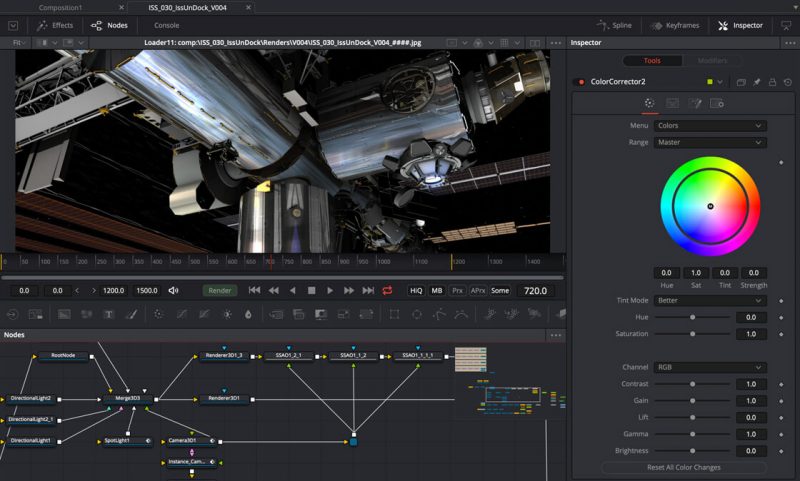
Visual effects (or VFX) is the process of creating and manipulating computer-generated imagery. VFX is already an important part of filmmaking and is becoming more and more important these days. There are several types of visual effects such as modeling, animation, compositing and rotoscoping. Thanks to visual effects software, things can be a lot easier.


The best VFX software for beginners

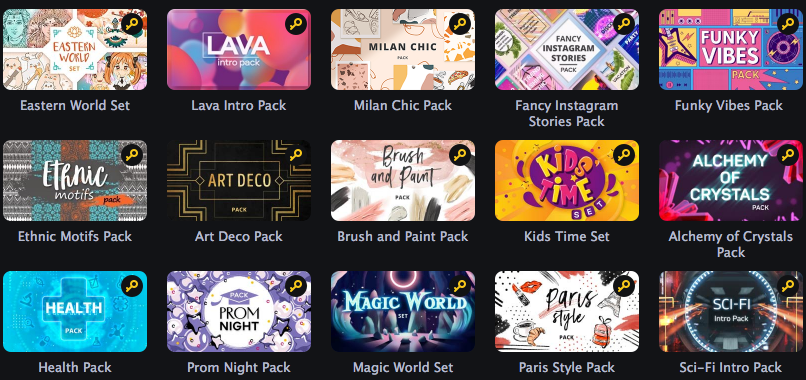
If you are looking for an easy-to-use video editor with special effects that allows you to do some basic VFX, then Movavi Video Editor Plus can be the best choice. Movavi Video Editor Plus comes with over 200 built-in effects, not to mention the professional visual effect sets and packages offered by its Movavi Effects Store. With them, even beginners can create amazing videos. It’s available for both PC (Windows 7 or later) and Mac (macOS 10.10 or later).

Easy for beginners

Many visual effects software programs used in the production of Hollywood blockbusters are node based. Unlike them, Movavi Video Editor Plus is layer based, which makes it’s easy to get started. Its interface is simple, intuitive and easy to navigate. Novices can benefit from its mild learning curve, and advanced users can efficiently achieve the effects they want with high flexibility.

Tons of visual effects available for instant use

Sometimes, things can be as easy as drag-and-drop. Before diving into something more advanced, let’s take a look at the video effects that are already available for use. The said VFX video editing software provides categories of effects for different scenarios. I think there will be always one fit for you.

  • LAVA
  • FANY INSTAGRAM STORIES
  • TRAVEL
  • MAGIC WORLD
  • VLOGGER ESSENTIALS
  • BRUSH AND PAINT
  • FUNKY VIBES
  • WEDDING
  • SPARKLING AND SNOWFLAKES
  • MILAN CHIC
  • ALCHEMY OF CRYSTALS
  • KIDS’ TIME
  • HEALTH
  • ETHNIC MOTIFS
  • SCI-FI
  • PARLS STYLE
  • AND MORE…

Use it for compositing

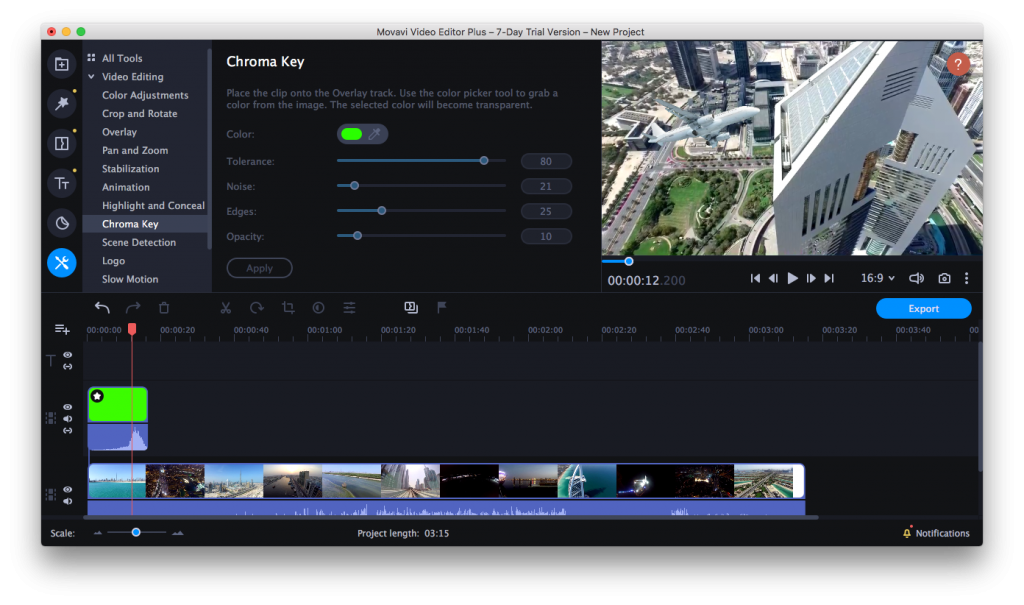
As the best VFX software for beginners, it allows you to easily do green screen compositing. Drag the green screen video and your background footage into the program, then select the Overlap mode by clicking More Tools to make the foreground video completely cover the background video. Find and click the Chroma Key, move your mouse cursor over the player and click on the green color. Tweak the setting until you are happy with the result. It’s that easy to key out green screen. If needed, you can crop out the unwanted part of the green screen video using the Crop feature.

You can also use it to easily layer your video, get picture-in-picture effect and add lens flares and light leaks to your video, among other things.

Use it for animation

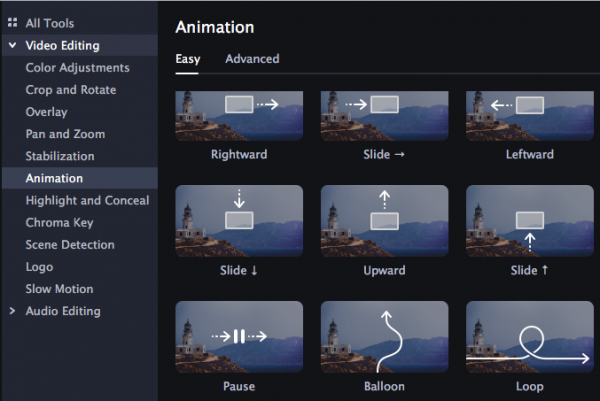
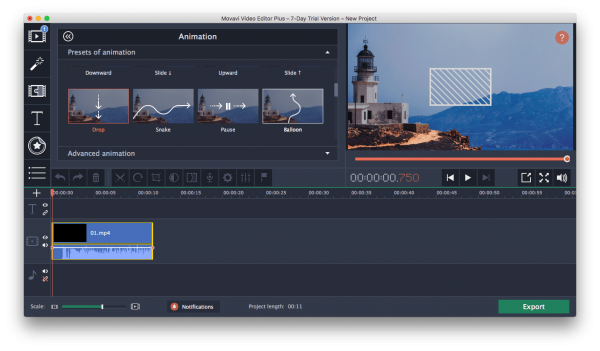
This program also offers a set of powerful animation tools. There are preset animation effects, which you can directly drop into your footage. You can either select Easy Animation (Rightward, Vortex, Curl etc.) or Advanced Animation to set up the time and length of the animation using key frame.

What can Movavi Video Editor Plus do?

  • Do visual effects such as green screen compositing
  • Super easy and quickly to edit your video
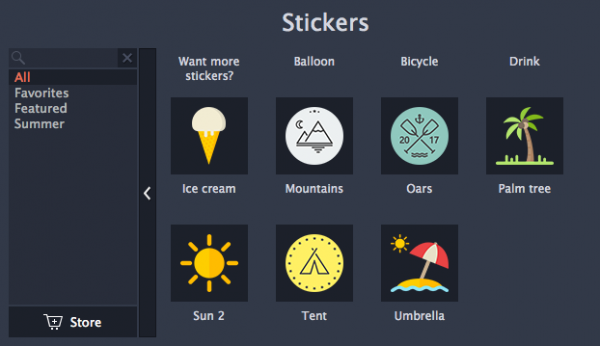
  • Provide embracing built-in materials with music, short films and stickers
  • Trim, crop, rotate, layer and enhance the quality of the video
  • Support all popular video, audio and image formats
  • Add text, subtitles and audios
  • Add motion graphics
  • Apply filters, transitions and titles
  • Do video stabilization, speed control and audio separation
  • And much more…

Free Download Movavi Windows
 
Free Download Movavi Mac


Top 5 commercial visual effects software

#1 Autodesk Maya

OS: Windows, Mac, and Linux

Price: $195/month, $1,545/year, or $4170/3 years

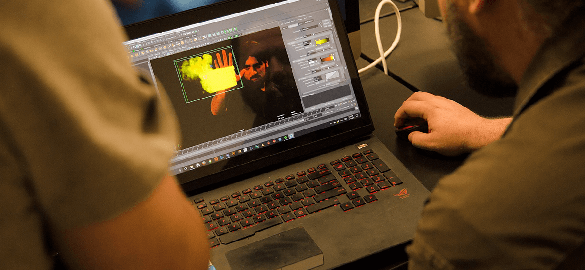
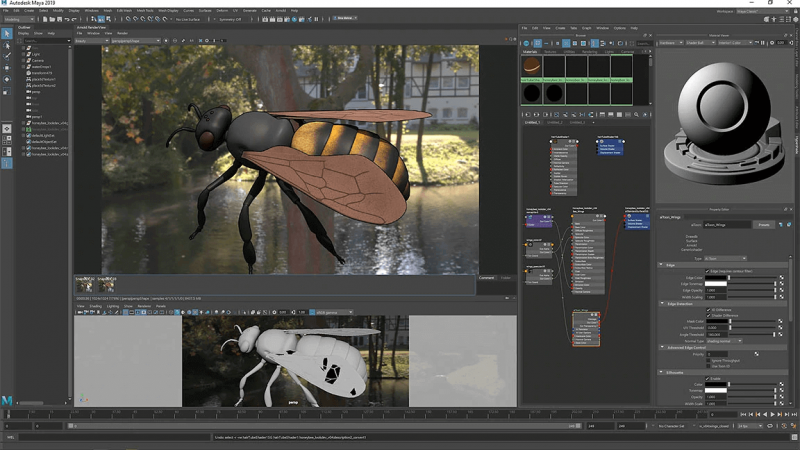
Commonly known as Maya, it can be the best VFX software for Mac, Windows and Linux. It is widely used in the production of movies, TV series, video games and other works. Coming with a rich array of features, this VFX software program is great for 3D modeling, animation, rendering, motion graphics and more. It does a good job of allowing users to add details, lighting, colors and other effects to 3D models. The user interface is intuitive, allowing users to create and manipulate models in an efficient approach.

visual effects software maya

#2 NUKE

OS: Windows, Mac, and Linux

Price: $4,758 for NUKE, $8,853 for NUKE X and $10,248 for NUKE Studio

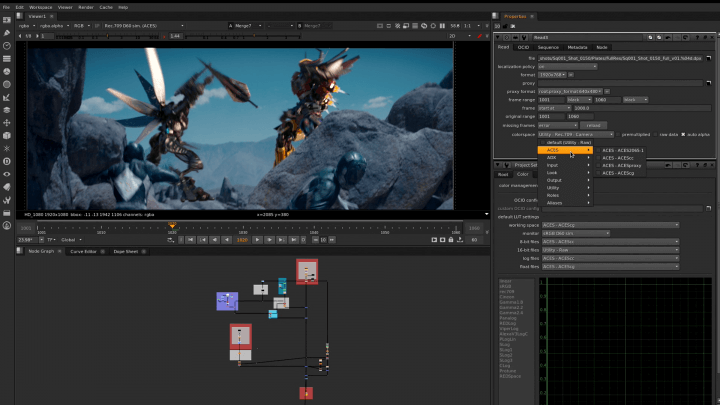
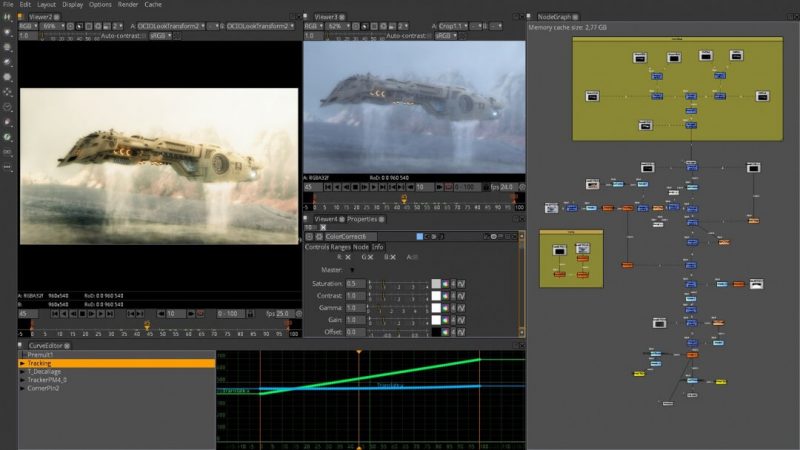
It is a VFX and compositing software program available for multiple platforms. There are three editions: NUKE, NUKE X and NUKE Studio. It’s a powerful tool coming with great tools for compositing, rotoscoping, particle effects and more. The industry standard compositing software has support for 2D and 3D. Professionals will benefit from its considerable amount of visual effects capabilities. NUKE is node based, which makes it very efficient especially make it comes to big projects.

visual effects software nuke

#3 Autodesk 3ds Max

OS: Windows

Price: $195/month, $1,545/year, or $4170/3 years

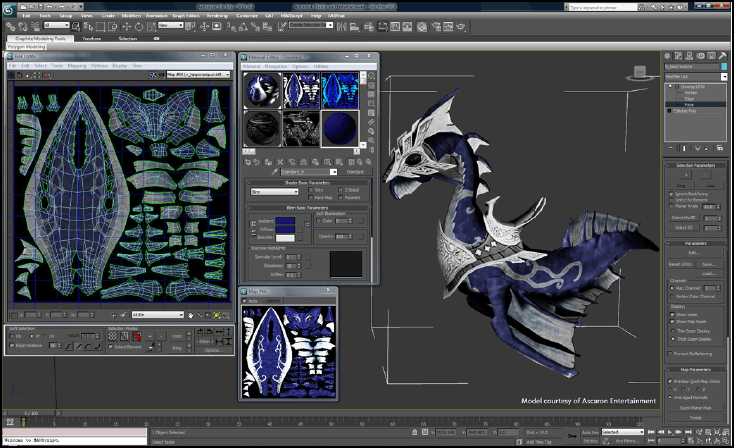
This powerful versatile visual effect software tool is designed for 3D modeling, animation, and rendering and is widely used in industries like architecture, design and video games. It excels at 3D modeling for both characters and objects and offers high performance when it comes to rendering. With it, users can expect high level of reality and detail of their works. For new users, it can be a bit difficult to learn. As one gets more experienced, one can explore endless possibility and make the most of this tool.

autodesk 3ds max

#4 Cinema 4D

OS: Windows, Mac, and Linux

Price: $59/month, billed annually

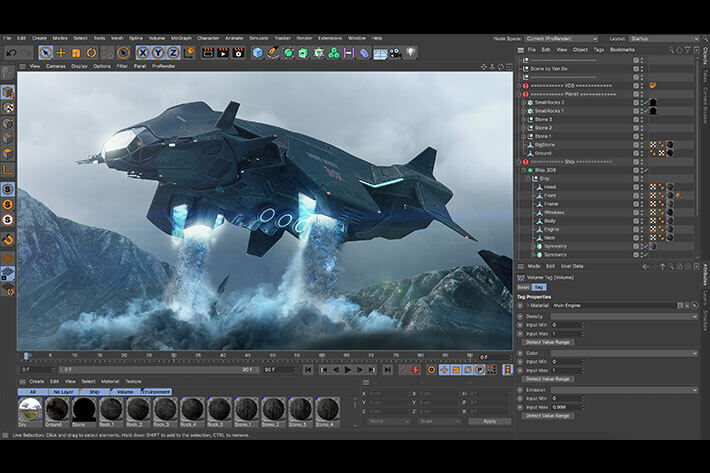
As one of the most popular visual effects software programs, Cinema 4D is widely used for organic and non-organic modeling, animation, rendering and other VFX tasks. It is commonly used in design, graphic design, animation, broadcast and other industries and is easily one of the best providers of 3D modeling and rendering solutions. In addition, it’s also good at creating animations with impressive textures. Compared with some other VFX software, this one is very easy to learn. It offers a lot of useful plugins, which can make your work easy.

vfx software cinema 4d

#5 Houdini

OS: Windows, Mac, and Linux

Price: Free and commercial versions

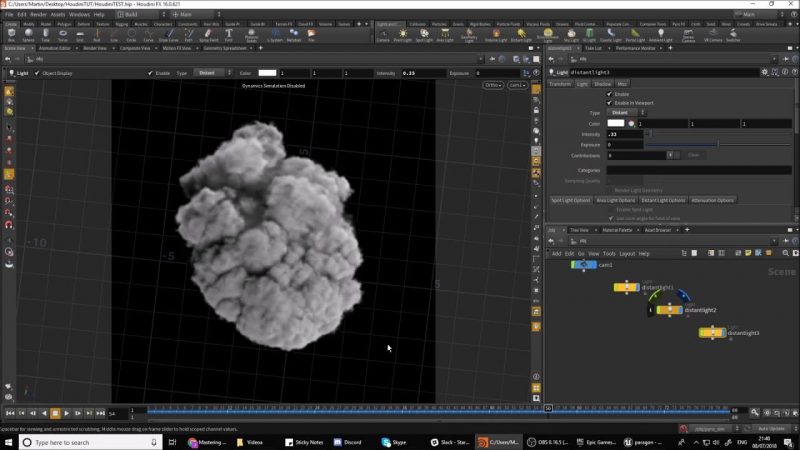
When it comes to visual effect software, we can’t ignore Houdini. It is used by many big VFX companies such as Pixar and DreamWorks Animation. There are six versions, which makes the pricing a bit complicated. The free version is called Houdini Apprentice. It’s free for non-commercial use only. Designed to be a visual effects and 3D animation tool, Houdini has been widely used in filmmaking video games production. The node-word workflow makes it popular among VFX professionals.

visual effects software houdini


3 free open-source visual effects software

Commercial VFX software often comes with high price. The good news is that there are also some free, open-source alternatives.

#1 Blender

OS: Windows, macOS, Linux, FreeBSD, OpenBSD, NetBSD, DragonFly BSD and Haiku

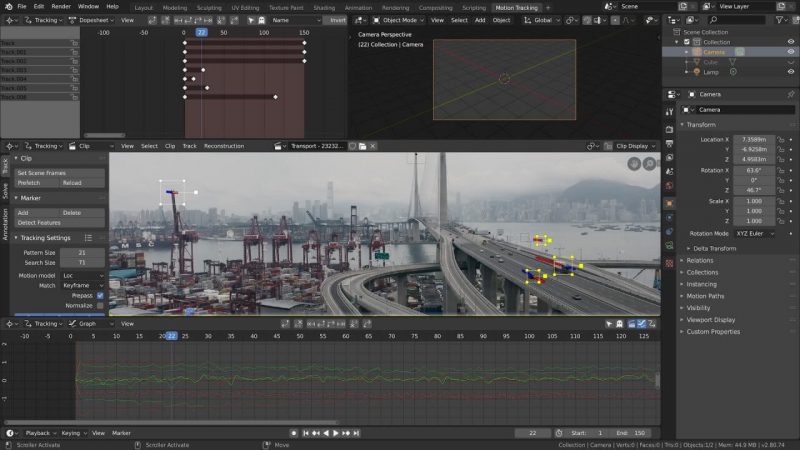
Despite being free, Blender is powerful and versatile. It provides rich sets of tools for visual effects, 3D modeling, ragging, simulation, compositing, vide editing and match moving other tasks. It offers a complete set of tools for any type of 3D tasks. One of the great things is that you can download templates online and use them for your projects in Blender. Compared to most other VFX software, it’s relatively small and lightweight. In addition, it’s very customizable and flexible.

free open source vfx software blender

#2 Blackmagic Fusion

OS: Linux, macOS, Windows

This VFX compositing software program has a free version and a commercial version. It has been used in the productions of tons of Hollywood big movies such as Iron Man and 2012. Despite being free, the free version allows you to use it for commercial projects. It excels at visual effects, virtual reality and motion graphic tasks. Just like some similar visual effects software, it’s node based, which allows high flexibility.

top free visual effects software blackmagic fusion

#3 Natron

OS: Linux, macOS, FreeBSD, Windows

Free, open-source and node-based, this freeware visual effects tool is easily accessible and easy to use. If you are a Nuke user, you will find its interface very similar to that of Nuke. It offers a number of functionalities for video tracking, keying, rotoscoping and keyframe animation. In addition, you will also find basic tools for image editing and painting.

free software for visual effects natron


Conclusion

If you are new to VFX and want to create a video or short film full of cool effects with the least efforts, you can use Movavi Video Editor Plus, the best video editor with special effects. You can do amazing video editing and compositing without leaving the app. It offers a great number of basic and advanced features and tools for all users. Most visual effects software programs are powerful, versatile and expensive. Thanks to the free open-source alternatives, everyone can have the opportunity to dive into the world of VFX.

Related Post

By |2020-08-06T09:03:24+08:00December 11th, 2019|

inAudible Software Review: How to Use and Alternative

Audiobooks purchased and downloaded from Audible Store are protected by Digital Rights Management (DRM), which restricts you from playing them on various types of devices or in any applications.
inAudible software is a decent tool that helps you resolve the DRM issue. Is it safe or free? How to use inAudible converter and its alternative? Today, we will give an objective review of it.

inAudible Software Review

3 Things Need to Know about inAudible Software

#1. Is inAudible Converter Available?

Yes, it still can be downloaded from some forums, youtube.com with an MZ link, and torrent sites like The Pirate Bay, Kickass Torrents.

It’s inconvenient to obtain the download address of inAudible converter, as it doesn’t have the official website. When you search inAudible software on Google, you will see a website- inaudible.software.informer.com. But there is no download link in it, which makes the user from answers.informer.com mistakenly think inAudible software not available anymore.

#2. Is inAudible Software Free?

Yes, it’s free.
inAudible software is compatible with both Mac and Windows. The versions you can find are low especially inAudible for Mac, as the software stopped updating long ago.

#3. Is inAudible Converter Safe to Use?

Not 100% safe (although the github.com proves it’s neither pirated nor illegal.).
First of all, there is no official website for you to download inAudible software with confidence. Whether the links provided by various forums and torrent sites are secure that needs to be verified.
Based on the test, the Mac version is safe to install and use, but the Windows one may not. The first time, when we gave a try on inAudible 1.97 download, it encountered a Trojan. We turned to install inAudible 1.95 for Windows as instead. The entire download and use process were great. However, the horrible Trojan occurs again when splitting audiobooks by chapters.

Overview

inAudible software is a practical audiobook converter that allows you to remove DRM from AA or AAX Audible files and convert them to applicable MP3, AAC/M4B, or WAV. It retains original metadata (author, cover, title, chapters, etc.) and ID3 tags of your audiobooks after conversion. inAudible software also supports to separate Audile files into multiple small segments by chapters.

Main Functions:

  • Transcodes Audible files to MP3, M4B, etc.
  • Keep ID3 Tags after audiobook conversions
  • Adjust output-tweaking aspects such as sample rate, CBR bitrate, VBR mode, etc.
  • Split audiobooks by silence detection, fixed duration or chapter maker (Win); split files into small clips using the default “Split by chapter” option (Mac)
  • Rip CD (Win)
  • Batch conversion for same files (Win)
  • Misc tools: Tag Editor, Renaming Tool, MP3/M4B Joiner, and Audio Editor (Win)

Pros:

  • Free and lightweight
  • Full-featured audiobook converter
  • Fast conversion speed

Cons:

  • Discontinue upgrading
  • Novices may be confused by the Win version

In a word, inAudible converter for Windows is packed with more powerful features than the Mac version. But every coin has two sides, the Windows version is not easy to master for new users.

inAudible Download

Methods 1. Download from a Reliable Forum

Thanks for the user from Github, you can get all inaudible download links here: https://github.com/rmcrackan/inAudible.

Mac version:

  • inAudible v0.09

Windows versions:

  • inAudible v1.702
  • inAudible v1.75
  • inAudible v1.802
  • inAudible v1.86
  • inAudible v1.91
  • inAudible v1.94
  • inAudible v1.95
  • inAudible v1.97

People also search the keyword “inAudible 1.98 download” on Google, but we didn’t find the version 1.98. If you know it, please share the download link in the comment.

Methods 2. Download from Thepiratebay.org

Mac version:

  • inAudible v0.09

Windows version:

  • inAudible v1.56
  • inAudible v 1.666
  • inAudible 1.78
  • inAudible v1.97

Step 1. Install a torrent downloader- BitLord, and run it.
Step 2. Head over to the inAudible download site on thepiratebay.org.
Step 3. Click on “Get this torrent”, and it pops out a prompt dialog, just choose “Open BitLord”.

get this torrent from thepiratebay.org
Step 4. Click “Start download” on Add Torrents window, and the software will be added to the download list of BitLord.

add inAudible software to download list

Test result: when we download the inAudible converter for Mac, it stuck at 0 KB/S, but all the Windows versions are successfully downloaded.

Input & Output Formats

The input file types that can be opened with inAudible software:

  • AA
  • AAX
  • ADH

The output codes of Mac and Win are different:
Mac:

  • AAC/M4B
  • MP3

Win:

  • “True Decrypt” output will be MP3 (Lossless)
  • AAC/M4B (NeroAAC)
  • MP3 (Lame)
  • WAV

How to Use inAudible Software to Convert Files like AAX?

On Mac:
Step 1. Click the button that looks like an ellipsis in the “Input” column, and import AAX file from your Mac.
Step 2. Choose an output location.
Step 3. Customize the transcoding options including selecting a target output format.
Step 4. Click on “Begin Conversion” button.

inaudible software for mac

On Windows:
Step 1. When you launch inAudible converter on your Windows, you will see the “Conversion Wizard” which enables you to load local AAX file.

load audible book
Step 2. Specify your output file location.
Step 3. Choose the output type and modify audio settings.

inaudible for win interface
Step 4. (Optional) Compared to the Mac version, inAudible Windows supports more chapter options. You can also click the “Adjust Chapters” button to open up the “Advanced Cutter/Chapterizer” window for more advanced customizing.

advanced cutter/chapterizer
Step 5. Start the conversion for the Audible file.

Best Alternative to inAudible Software- Epubor Audible Converter

Epubor Audible Converter, available on both Mac and Windows, is the most professional and popular inAudible software alternative. It devotes to unlocking DRM protection and converting Audible AA/AAX to MP3 or M4B formats. Better than an inAudible converter, Epubor Audible Converter can handle multiple files in various types at the same time.
With its intuitive interface, you can easily split the large audiobooks to small clips via a fixed time interval, average segments, and chapters. You don’t have to worry about the ID tags and metadata information, as they will be preserved.

Why we recommend Epubor Audible Converter:

  • Absolutely safe
  • 60X faster than competitors
  • Decrypt AAX or AA file with one-click
  • Deal with Audible files in a bulk
  • Split Audible books by multiple options
  • Support a few UI languages

How to Use the Best inAudible Software Alternative:

Step 1. Install Epubor Audible Converter
Download the free trial of Epubor on your Mac or Windows. The free version only lets you convert 10 minutes of each AA/AAX file. And you can’t use the split function. If you desire more helpful features, upgrade it to the purchased version.

Free Download for Mac
 
Free Download for Win

Step 2. Import audiobooks
Launch inAudible software. You can click on “+Add” to locate the folder stored your audiobooks, or directly drag-n-drop the downloaded files into the software interface. All the information like book title, author, and length of added Audible books will be displayed as well.

epubor interface

Step 3. Separate AA/AAX files into chapters
At the end of each book title, you can see an “Option’ button for opening the audiobook splitting window. Choose a split mode as you like and click on the “OK” button.

split chapters

Step 4. Process the conversion
Click the file icon in the bottom right corner and choose an output path.
Specify your target format as MP3 or M4B and start the conversion.

start conversion

Conclusion

As a free audiobook converter and DRM remover, inAudible software has proved its advantages over other similar tools. But if you prefer using a 100% safe and dedicated program, Epubor Audible Converter should be one of the best alternatives to inAudible converter.

Related Post

By |2020-02-12T11:31:06+08:00November 22nd, 2019|

5 Best Duplicate Photo Finder Apps for Windows and Mac in 2019

Looking for a duplicate photo finder to find and delete unwanted duplicate photos? There are lots of duplicate image finders out there. We tested more than a dozen of the most well-known ones and picked the best of them. This list of top duplicate photo finder software (free and paid) will help you narrow down choices and quickly find the one that best suits your need.

4 quick facts

  1. Almost all duplicate file finders can be used to find duplicate photos. There are still quite a few dedicated photo duplicate finders.
  2. Most of them are desktop or mobile apps which can work perfectly offline. You can also find online services which are used to deal with dupes in cloud storage such as Google Drive.
  3. Some free duplicate photo cleaners can also do the job pretty decently. They are not inferior to or are even better than some paid ones.
  4. Some of them can also find similar photos.

5 criteria to evaluate the best duplicate photo finder software

  1. Performance First of all, it should be able to accurately identify the similarity between images. We also expect high speed and efficiency even when it comes to very large collections of photos.
  2. Usability This could involve ease of use, intuitive interface and satisfying user experience. It’s not only about making it easy to find and remove duplicate images. In addition, the best duplicate photo finders should also provide enough advanced or customization options, allowing users to have more control and improve efficiency.
  3. Compatibility It’s important to have wide support for various image formats such as JPEG, TIFF, GIF, BMP, PNG, WebP, etc. This way, the tool can find all the photo duplicates regardless of formats. Also, users can also benefit from high compatibility with various storage devices such as computer’s internal disk, external HD, memory card, etc.
  4. Preview The preview feature is so important that we list it as an individual criterion here. A duplicate photo finder with preview makes it extremely easy to view and compare groups of dupes and to avoid deleting the ones you actually need.
  5. Versatility Just like duplicates, unwanted similar images can also waste precious disk space. The feature to detect and delete similar photos can be a big plus.

Top 5 duplicate photo finder software (including freeware)

#1 Gemini 2

OS: macOS 10.10 and higher

Developed by MacPaw, Gemini 2 is a macOS-only duplicate file finder with support for file types such as photos, audios, videos and archives. Excelling at identifying and eliminating duplicate photos and similar photos, it can work as a great photo duplicate finder. It’s available in English, German, Spanish and 9 other languages.

What is good?

The scanning algorithms (which are not specified) it uses can rapidly look for duplicate as well as similar pictures in the selected Photos or iPhoto libraries/folders/disks. Thanks to the fast scanning, even users with lots of photos don’t have to wait long. In our test, it only took 36 seconds to scan 8,797 files (taking up 22.68 GB), which is way faster than most similar software.

The best duplicate photo finder is easy to use even for new users due to its intuitive beautiful interface. There are a few useful thoughtful minor features to bring good user experience, such as Cleanup reminder, Restore last session and the option to check for updates automatically. The Select Duplicates feature enables users to choose a selection rule (Automatically, Oldest or Newest, etc.) and then batch select all unwanted duplicate copies with just a click.

It allows high flexibility to customize detection and removal of photo duplicates. Here’s an example. To skip all PNG photos when you scan for dupes, go to Preferences > Ignore List > File Extensions and add .png to the list.

Thanks to the preview feature, you can preview images, videos, audios and even documents in the app. You can zoom in or zoom out the preview by resizing the window of this app.

Gemini 2 preview

What is not so good?

This duplicate photo remover identifies compressed versions of the same photo as similar photos. However, its Similar Images feature only provides three selections rules: Oldest, Newest and Any, which are not enough. If users want to select the smaller-sized versions to delete, they have to do the selection manually. Hopefully, the future update will bring more useful options such as Select Smallest.

Tip

By default, this duplicate photo finder will automatically set a minimum file size. As a result, it may skip some small-sized photo duplicates during scanning. To find all dupes regardless of size, go to Preferences > General > Minimum file size, click the dropdown list and choose None.

Gemini 2 preferences

→ Get Gemini 2 to look for and get rid of duplicate and similar images

#2 Visual Similarity Duplicate Image Finder

OS: Windows 10, 8.1, 8, 7, Vista, XP, NT, 2000, 2003, and all Windows Server OS

Offering an array of basic and advanced features, this duplicate photo finder for Windows 10 and other Windows operating systems is considered the best by many. The long list of supported image types and rich set of advanced features make it a great choice for photographers and professionals.

What is good?

Thanks to the advanced algorithms it uses, this duplicate image finder can quickly and accurately compare images and detect the duplicates, even if some dupes are different in format, bit depth or size. It is also able to find similar images. Duplicate versions with the lower resolution or smaller file size will be marked automatically so that you can easily delete them by one click. Before scanning, you can even specify the image similar level to get a more desirable result.

The large set of advanced features and options can bring high level of customization. Advanced users can use features like Advanced Compare and Filter to make the most of this duplicate photo remover for Windows 10.

It supports over 100 image formats including JPG, GIF, PNG, TIFF, JP2, BMP, ICO, WEBP and Photoshop PSD, which is awesome. What’s more, it also has support for over 300 RAW camera file formats. In addition to the folders and subfolders on your computer’s local drive, it’s also compatible with external and network drives.

You can easily preview and compare the original photos and their duplicate copies in this app. There are two panels: Preview and Multi Preview.

Visual Similarity Duplicate Image Finder main screen

What is not so good?

New users may find the user interface a bit overwhelming. It may require a bit of learning before one can know how to properly use this sophisticated duplicate photo finder. But don’t panic. The developer provides a detailed tutorial, which is very helpful. It will walk you through the whole process.

Tip

Before scanning, you can use the Filter function to easily exclude files by extension, size or date. It can help reduce scanning time and improve efficiency.

→ Get Visual Similarity Duplicate Image Finder to effectively eliminate any photo dupes

#3 Cisdem Duplicate Finder

OS: macOS 10.10 or higher; Windows 10 and 11

Here’s another great duplicate photo finder. It’s a duplicate file finder with excellent ability to scan for and remove duplicate images on Mac and Windows PC. This app stands out due to its impressive ease of use, powerfulness and versatility. The preview is very convenient with three view modes and a zoom feature.

What is good?

Supporting all image types like JPEG, GIF, PNG and TIF, this app is able to find duplicate photos as well as the similar ones regardless of filename, format or location. It can accurately and quickly find true dupes by content. At the same time, users can also choose to identify dupes by filename. The ability to remove duplicates from Mac’s Photos or iPhoto without damaging the library is a big plus.

Thanks to the neat intuitive interface, even new users can smoothly use it without any difficulties. All it takes is three easy steps. One of the great things about this duplicate photo finder is that it offers enough selection rules. It will make things a lot easier.

For duplicate images For similar images
  • Smart Select
  • Select Newest
  • Select Oldest
  • Smart Select
  • Select Newest
  • Select Oldest
  • Select Largest
  • Select Smallest
  • Select Highest Resolution
  • Select Lowest Resolution

Also, it allows high flexibility for customization. You can easily choose scan method and removal method and set image similarity level and minimum & maximum file size. Via Ignore List, you can exclude important files, subfolders or folders from scanning. It’s also possible to ignore certain types of files.

In addition to computer’s internal disks, Cisdem Duplicate Finder can also work with external HD, SSD, memory card, USB flash drive, Google Drive, Dropbox, OneDrive, etc. It can work perfectly offline and ensure utmost safety.

As mentioned above, the preview feature is very convenient. You can switch between three modes: Thumbnail (side-by-side comparison), List and Info. By zooming in or zooming out, you can get better view and comparison. The preview applies to images, videos, audios, documents, spreadsheets, etc.

It is equally good at finding other types of dupes such as duplicate documents, music files, videos, archives, packages, ebooks, etc.

Cisdem Duplicate Finder preview and compare duplicate photos

What is not so good?

The app’ Mac version still doesn’t support Mac dark mode. Also, the interface looks a bit simple. Hopefully it will be improved with the upcoming upgrades.

→ Get Cisdem Duplicate Finder for Mac to easily remove all duplicates at once on Mac

→ Get Cisdem Duplicate Finder for Windows to easily remove all duplicates at once on PC

#4 Easy Duplicate Finder

OS: Windows 10, 8, 7, Vista, XP; Mac OS X 10.6 – 10.14.2 Mojave

Available for both Windows and macOS, this duplicate photo finder can be used to clean up duplicate photos on PC, iMac, MacBook, etc.

What is good?

It can quickly scan for and identify duplicate images as well as other types of dupes in selected folders. In addition to the standard scan mode, it also offers several other modes such as Music Scan, iTunes Scan, Photos Scan, Google Drive, etc. Once the scan is finished, it will group detected dupes by file type like pictures, archives, documents, videos, etc. It provides seven selection options, allowing you to auto-select the duplicates based on your choice. For example, you can choose to keep the oldest or newest version in each duplicate group.

The interface displays text instead of icon. As a result, you can easily find and understand each function or option. It’s easy to add/exclude folders to/from scan. You can also directly access the filtering options in the main screen, which is pretty convenient and straightforward. You can effortlessly complete the whole process without additional help or instructions.

Easy Duplicate Finder scanning results

What is not so good?

The scanning speed is a bit slower when compared with the best picks. Also, the price tag is a bit high. That being said, if you need all or most of the functions it offers, the app is worth getting.

Get Easy Duplicate Finder to locate and eliminate duplicate photos and other dupes

#5 Awesome Duplicate Photo Finder (free)

OS: Windows 10, 8, 7, Vista, 2003 Server, XP, 2000

The best free duplicate photo finder can effectively prevent useless duplicate pictures from taking up room on your PC’s hard drive. Despite being freeware, it’s totally safe to use. It contains no adware, malware or other unwanted software. Freshly updated on September 4, 2019, it adds a new Minimum picture size option, allowing users to skip small pictures. By the way, a portable version is also available.

What is good?

According to our tests, it does a good job of finding exact duplicate images as well as the similar ones. These could include resized or slightly edited images. Although there are only five supported image types (JPG, BMP, GIF, PNG and TIFF), it can be enough in most cases. It is compatible with various devices such internal and portable hard drives, network drives and some external devices.

The interface is simple and easy to understand. You only need to drag some folders into the app, click the Start button and let this lightweight piece of software work its magic. The preview is big enough to provide a good view. When it comes to similar pictures, a similarity level will be provided. There are two removal methods: Move files to Recycle Bin and Delete Files without Confirmation.

Awesome Duplicate Photo Finder preview duplicate and similar images

What is not so good?

Professional software can make selection very easy by providing auto-select or similar features. This way, users don’t need to select duplicate copies one by one. With this freeware app, you will need to click the trash bin icon below the thumbnail of an unwanted dupe.

→ Get Awesome Duplicate Photo Finder to remove duplicate pictures for free

Other duplicate photo finders worth checking out

  • Duplicate Photos Fixer Pro (Windows, Mac)
  • dupeGuru (Windows, Mac, Linux) (freeware, open-source)
  • PhotoSweeper (Mac)
  • Duplicate Photo Cleaner (Windows, Mac)
  • Cloud Duplicate Finder (online)
  • Duplicate Media Remover (Android)

Conclusion

Above are the best duplicate photo finder tools you can choose from. A typical duplicate image finder takes three steps to do the removal: scanning, selecting and deleting. The best ones of this kind should be able to do a good job of completing all these steps. For Mac users, we recommend Gemini 2 and Cisdem Duplicate Finder. For Windows users, Visual Similarity Duplicate Image Finder can be the best choice. By cleaning up dupes on a regular basis, you can free up storage space and make room for more new photos.

Related Post

By |2021-11-18T14:32:31+08:00September 6th, 2019|

Movavi Video Editor 15 Review: 6 Facts to Know Basing on Real Tests

Videos go viral these days, which increase the possibility for us to create, edit and share a video online. Speaking of editing a video, Movavi Video Editor is one among those popular video editors. Today, for users who are not sure about if Movavi Video Editor is worth a try, we here give an unbiased review and you will find the answer yourself.

What is Movavi Video Editor?

As its name says, Movavi Video Editor is designed to edit and customize your videos, but it can do more than just editing videos, you can check the following list of its main features:

  • Editing tools: add filters/transitions/titles/stickers/callout/pan&zoom/stabilization/chroma key/music;
  • Record video;
  • Record and edit audio;
  • Export video to differ video or audio formats;
  • Upload videos to Youtube, Google Drive and Vimeo;
  • Offer ready-made template or media files to customize your videos easily;

If you have tried to edit video in iMovie on mac, you will find Movavi video editor resembles a lot with iMovie. And it seems to me that, many video editors are quite similar in offered features, interface, etc.

6 Facts about Movavi Video Editor

To reveal everything about Movavi video editor, here we collect 6 facts about it and just tell you the truth about Movavi.

#1 Is Movavi Video Editor Safe?

Yes, it is safe.

First of all, we know that the developer of Movavi video editor—Movavi Software Limited has been dedicated to offer various multimedia programs for both Mac and Windows users since 2004. It is considered as one of the authorities in this field.

Also, Movavi is available on Amazon and some other famous download website, according to the users, it is safe to use.

What’s more, according to my personal experience of using Movavi video editor, it is 100% safe. It is clean and there is no malware or virus comes along with the package. Also, there are no ads or links direct you to harmful or annoying websites on the interface.

#2 Is Movavi Video Editor Free to Use?

It is only free during the 7-day trial and feature-limited. So, it is not free forever.

Movavi video editor offers free trial version, it is indeed free to use all the features during the trial period, but after 7 days since your installation of program, you will need to pay to activate for further use.

Also, for the trial version, there are limitations:

  • There is watermark on the saved and exported videos;
  • Only 1/2 of each audio file can be saved;

free version limit

In conclusion, Movavi video editor can never be deemed as a freeware to edit videos, since it is not free at all.

#3 Does Movavi Support 4K?

Yes, it does supports 4K videos, but…

As I drag and drop a 4K video for editing in Movavi, the video can be imported and processed successfully. But due to the large file size of a 4k video, the Movavi video editor 15 plus can processes faster than the Movavi video editor 15. That’s to say, all Movavi video editors support 4K videos, but the performance and speed will differ when using different versions.

#4 Does Movavi Have a Watermark?

Yes, the free trial version adds a watermark on the saved or exported videos/audios, but paid version doesn’t.

If you want to edit videos using Movavi without adding a watermark, you will need to pay instead of using the free trial version.

movavi watermark

#5 Is Movavi Video Editor Good and How Good? (The Review)

The Good:

  • Easy to use;
  • Import files from local media library, Movavi library and by recording video/screencast;
  • Free and stylish medial elements added to videos (transitions, titles, stickers, callouts, etc.)
  • Export to mainstream video or audio formats;
  • Share video online easily;

The Bad:

  • Take time to launch the program;
  • Take time to import and load files, especially large size files;
  • Support to mainstream video or audio formats only;
  • No Before/After effect contrast;
  • Need improvement on the interface layout;

The Review

To find out if it is a good choice to use Movavi video editor, here we downloaded and tried the program, giving out an objective review from different aspects.

Availability and Installation

Movavi video editor 15 and 15 plus are both available on Mac and Windows. The program is compatible on macOS 10.7 or later, and on Windows 10 or earlier.

The installation is quite easy, users just need to download the DMG or EXE installer and follow the instructions to finish the installation.

movavi installer

Interface

First, it is considerate for Movavi video editor to pack in 14 languages for the interface, so users from non-English countries can also utilize this tool easily for video editing.

interface language

Also, it is a good experience that Movavi offers such a creative prompt to guide you on a movie creating.

interface tutorial

Even, you can follow the on-interface guide to start your 1st video processing with Movavi.

tutorial02

As for main interface, on the left, there is a list of toolbars, you just need to locate and place your mouse on the icon to find out its capability.

However, there are still improvements Movavi video editor should make. For the Importing Files part, the interface doesn’t lay out beautifully, texts for all importing options just clutter and are in small font.

 main interface

Importing Files

Movavi allows users to import both personal and Movavi ready-made media files to the program for editing.

1) When importing files from local, you are allowed to import directly from your hard drive, or just by recording video/screencast.

  • Record Video—When importing files by directly recording a video, a new interface will be opened and your device camera will work to record the video, also you can tweak the settings to meet your needs.record video
  • Record Screencast—To import files by recording the screencast, you will have to pay. Just click the “Buy Now” button, and you will be directed to the pay page or order placing. But I don’t think it is necessary to buy for such a feature, since we can find free ones to do so.record screencast

2) When importing file from Movavi media library, you are allowed to free use its sounds, music, sample video, backgrounds and intro videos. There are dozens of options there for downloading and importing, even, you can download more online on Movavi website, they are 100% royalty free.import media library

Editing Tools

The main feature of Movavi video editor is the ability to edit videos, while how good it performs to edit a video greatly depends on what kinds of editing tools it has built in.

  • Basic Editing—Like any other video editors, Movavi also offers a basic setting of tools to edit videos, including undo, redo, delete, split, rotate, crop, color adjustments, record audio, audio properties, etc.
  • Filters—Movavi offers 12 categories of filters, total 170+ for free to add special visual effect to imported videos. Also, if you want more special filters, you can click “Store” or “Want more filters” to buy from Movavi. According to me, the free filters are quite basic and normal, while those paid ones are much more creative and stylish.filters
  • Transitions—Movavi offers 12 categories of transitions, total 100+ for free. All the transitions are trendy and practical. Also, you can pay if you want to buy some others from Movavi on its official webpage. And the Transition Wizard will allow users to customize the transitions as needed.transitions
  • Titles—There are 6 categories of title templates, total 45+ for free. You can edit the texts, customize font, font size and color. Still, you can buy from Movavi if the free ones cannot meet your requirements.titles
  • Stickers—To highlight your videos, you can add stickers. There are total 10 free stickers for use. If you want more, you will need to buy from Movavi.stickers
  • Animation (Only for Plus Version)—For Movavi Video Editor 15 Plus only, there is an extra feature to add animation for videos. Movavi offers total 27 animation styles for free use, also it allows users to create their own animation preferences under the advanced settings.plus animation
  • Other Editing Tools—Pan and Zoom(Use the zoom frame in the player to zoom in on parts of the video or create a camera movement effect); Callouts(Add arrows and shapes to videos); Chroma Key(Pick a color to erase it from the video’s background); Stabilization(Remove camera shake from videos);

Export Videos

After editing, Movavi allows users to save and export as various video or audio formats, including MP4, AVI, MOV, MPEG, WMV, MKV, FLV, M2TS, WEBM, OGV, SWF, DVD, GIF, MP3, WAV, AAC, FLAC, OGG and WMA. For sure, if you don’t know which format you should save as, you can just choose your device model, Movavi will do the rest for you.

export videos movavi

Share Videos

A great of our users want to share their videos online after the editing. By knowing this, Movavi allows users to share videos on Youtube, Google Drive and Vimeo within the program, you just need to sign in your account.

share videos

#6 Movavi Video Editor 15 VS 15 Plus Version

As we mentioned above, Movavi video editor has 2 versions, 15 and 15 plus. Which version should our users prefer? First, take a look at the comparison table below:

movavi vs

According to the table, 15 Plus comes with more features, such as animation, marker, highlight and conceal tools, also it offers more free Movavi templates. And the main difference lies in the animation feature, if you want to add animations to your videos, you can try its free trial first, then decide if you want to purchase the program. Otherwise, Movavi video editor 15 is OK to continue with your video editing.

Extended: How to Download Online Videos for Further Editing

There are so many online video sources that we can utilize to create videos for personal but legal purposes. But how to get and download these online videos? We need an online video downloader.

Download Online Videos for Further Editing on Mac

iFunia YouTube Downloader is a mac program designed to download online videos from YouTube, Vimeo, Facebook and other 1000+ websites. It supports batch download and allows user to choose video quality when saving to mac.

Main Features of iFunia YouTube Downloader

  • Download videos from YouTube and 1000+ websites;
  • Support 2k, 4k and 8k videos;
  • Download YouTube playlist;
  • Export videos as MP3;
  • Batch download

Steps to download online videos on Mac

  1. Download and install iFunia YouTube Downloader on your mac.
  2. Copy and paste the video URL into iFunia;ifunia download videos mac 01
  3. Choose output, then click the Download icon to save online videos.ifunia download online videos mac 02

Download Online Videos for Further Editing on Windows

Winx YouTube Downloader is a free Windows program to download online videos from 1000+ websites. It allows users to choose video resolution and grab pictures from video.

Main Features of Winx YouTube Downloader

  • Download online videos from 1000+ websites;
  • Support 2k, 4k, 8k;
  • Allow selecting video resolution
  • Capture picture from video
  • Export videos as FLV, Webm and MP4.

Steps to download online videos on Windows PC

  1. Download and install Winx YouTube Downloader on your Windows PC;
  2. Click the URL button, copy and paste the video URL into the program;
  3. Click “Analyze”, select output;
  4. Then click “Download” to get the online videos to your Windows PC.

winx downloader

Conclusion

In conclusion, Movavi video editor is worth a try if you just want to have a basic editing on your videos. If you require high or need to make your video much more creative, you will need to pay for a more professional one or pay extra to get the paid ready-made templates from Movavi.

Related Post

By |2020-09-02T11:41:24+08:00August 1st, 2019|
Go to Top